A workstation PC is a desktop built for sustained professional work such as 3D rendering, video production, simulation, software builds and local AI, where core count, memory capacity, stability and expansion matter more than peak frame rates.
Here’s how our builders spec a workstation PC in 2026: which CPU and GPU to choose, how much memory you really need, the platform limits most buyers miss and which hand-built systems fit each workload.
In This Guide
Workstation PC vs Gaming PC: What Changes
A gaming PC is tuned for frame rate in one app at a time. A workstation PC is tuned for throughput and reliability under loads that run for hours. The parts overlap a lot, but the priorities shift.
| Priority | Gaming PC | Workstation PC |
|---|---|---|
| CPU | 8 cores with large cache | 12 to 16 cores, cache-rich if your apps benefit |
| Memory | 32 GB | 64 GB to 256 GB |
| GPU | Fastest for frame rate | VRAM capacity and Studio drivers |
| Storage | One or two NVMe drives | Separate drives for system, projects and cache |
| Power and cooling | Short gaming peaks | Sustained all-core and GPU loads |
| Goal | High FPS, low latency | Faster jobs, zero surprises |
CPU: Cores, Cache and Platform Limits
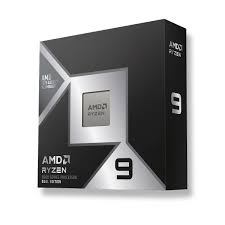
In a workstation PC, the CPU choice comes down to whether your heaviest app scales across many cores. For most single-socket desktop workstations, our builders start on AMD’s AM5 platform. The Ryzen 9 9950X3D brings 16 cores and 32 threads, boost clocks up to 5.7 GHz and 128 MB of L3 cache at a 170 W default TDP.
The Ryzen 9 9950X3D2 Dual Edition, launched April 22, 2026, keeps 16 cores but puts 3D V-Cache on both chiplets for 192 MB of L3 at 200 W. It’s the first desktop chip with V-Cache on both CCDs, and its launch price was reported at $899. Large caches can help workloads that repeatedly touch big datasets, so check results for your own apps before paying extra.
The 12-core Ryzen 9 9900X3D is a step down, and Intel’s Core Ultra 9 285K (24 cores: 8 performance plus 16 efficient) is the main alternative on LGA 1851. For how the 16-core and 8-core X3D chips differ, see our 9950X3D vs 9800X3D comparison.
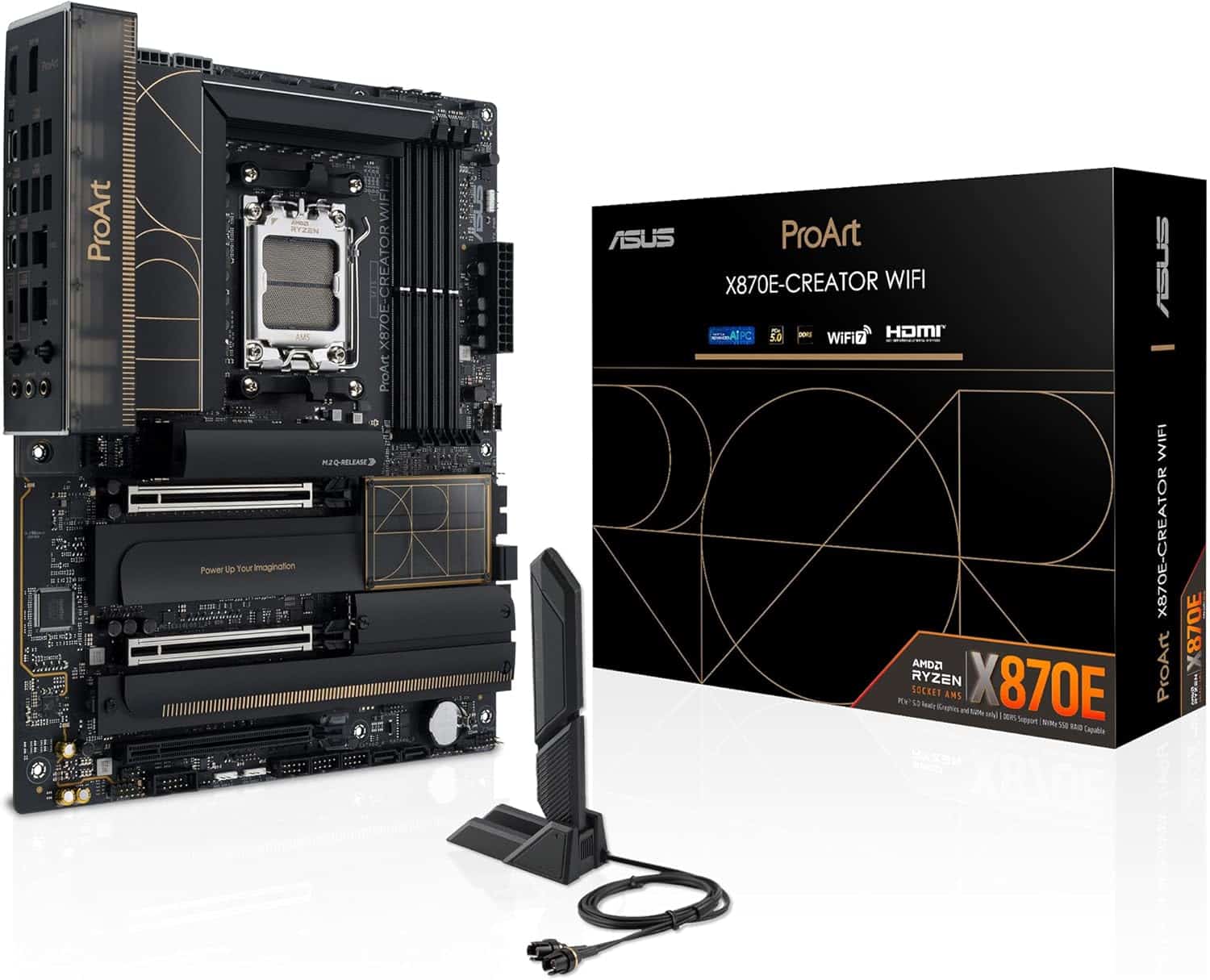
Know the platform ceiling, too. On its Ryzen 9 9950X3D spec page, AMD lists 28 PCIe 5.0 lanes (24 usable), two memory channels and up to 256 GB of memory. That comfortably feeds one large GPU and several NVMe drives. If you need multiple full-bandwidth GPUs or more memory, you’re shopping a different class of platform.
Memory: How Much RAM a PC Workstation Needs
Memory is where a PC workstation most often falls short. Blender, for example, lists 32 GB as its recommended memory, and we treat 64 GB or more as the norm for heavy video editing, 3D, large sample libraries and virtual machines.
- 32 GB: Photo work, graphic design, code and lighter 3D.
- 64 GB: 4K video, mid-size 3D scenes and a few VMs at once.
- 128 GB or more: Large simulations, 8K timelines, big datasets and many VMs.
Module count matters. AMD lists DDR5-5600 as the official speed with two modules, but DDR5-3600 with four. For most builds we prefer two high-capacity modules over four smaller ones, unless the job truly needs the extra capacity.
AMD also lists ECC support for Ryzen 9000 as “Yes” with motherboard support required. Most desktop DDR5 kits are non-ECC, so if your work demands ECC, confirm board support before you order. Memory is expensive right now: at the time of writing, 64 GB kits run roughly $1,000 to $1,400. Our guide to DDR5 RAM prices explains why.
GPU: VRAM, Drivers and Rendering
The graphics card accelerates rendering, effects, AI tools and the viewport. VRAM is the hard limit: if a scene or model doesn’t fit, the job can slow sharply or fail outright.
| Spec | RTX 5090 | RTX 5080 | RTX 5070 Ti |
|---|---|---|---|
| VRAM | 32 GB GDDR7 | 16 GB GDDR7 | 16 GB GDDR7 |
| CUDA cores | 21,760 | 10,752 | 8,960 |
| AI TOPS | 3,352 | 1,801 | 1,406 |
| NVENC encoders | 3x 9th gen | 2x 9th gen | 2x 9th gen |
| Required system power | 1,000 W | 850 W | 750 W |
| Launch MSRP | $1,999 | $999 | $749 |
The RTX 5090 has roughly twice the CUDA cores and twice the VRAM of the RTX 5080, which makes it our default for a GPU-rendering or local-AI workstation PC. Street prices are well above MSRP in 2026 because of the memory shortage, so check our product pages for current pricing.
Install NVIDIA Studio Drivers, which NVIDIA describes as GPU-tuned updates for stability across creative workflows. For Blender, the official requirements recommend 8 GB of VRAM and support GeForce 900 Series and newer. NVIDIA also sells professional workstation cards; if your CAD or engineering vendor requires a certified GPU, follow its list.
Storage, Power and Cooling for Long Jobs
Storage. Split the work across drives: one NVMe SSD for Windows and apps, a second fast NVMe for active projects and cache files, and larger storage for archives. Back up anything you can’t recreate, ideally to a separate device. Keeping cache and scratch files off the system drive also stops a full boot drive from stalling a workstation PC mid-render.
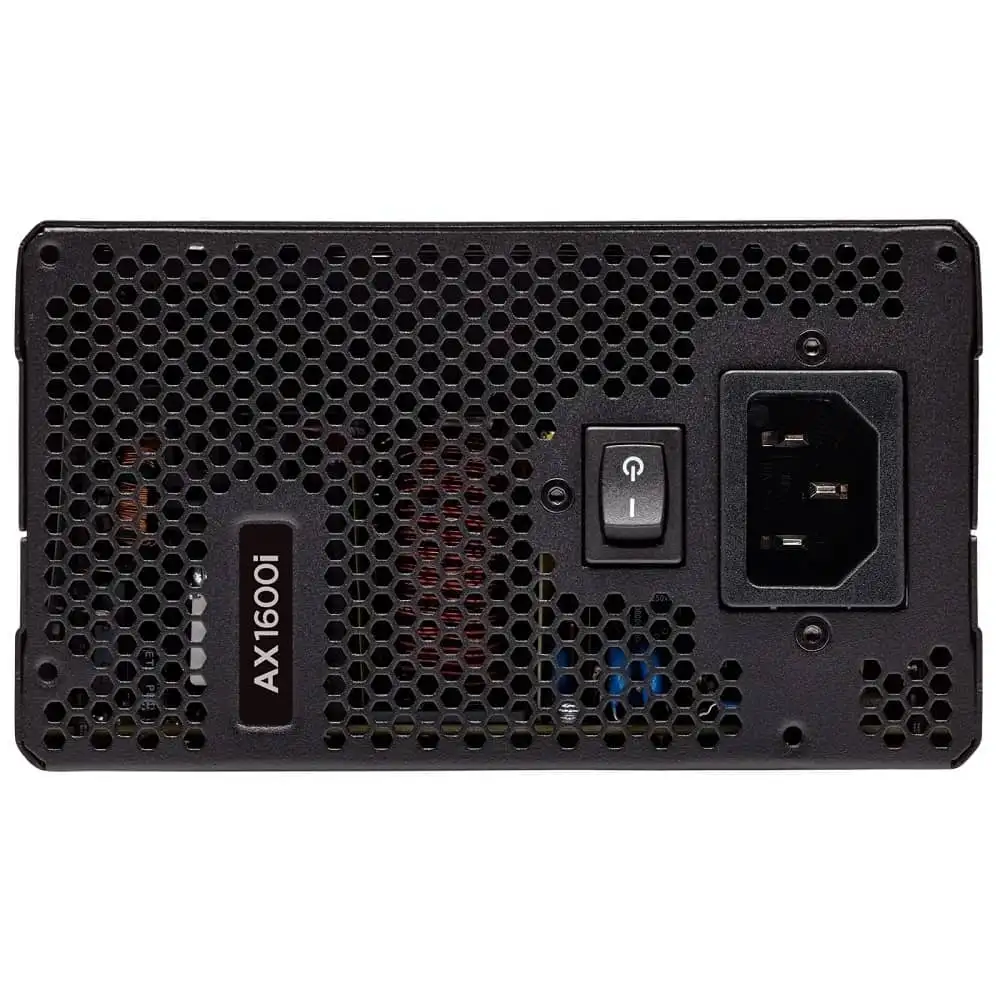
Power. NVIDIA lists 1,000 W of required system power for an RTX 5090 system. Pair that card’s 575 W with a 200 W 9950X3D2 running for hours and it’s sensible to go higher. A unit like the Corsair HX1600i leaves plenty of headroom.
Cooling. Renders and simulations hold every core at full load, not just for a few seconds. A 360 mm liquid cooler or a top-tier air cooler, plus a case with real airflow, keeps clocks steady and noise reasonable when you’re working next to the machine all day.
Best Workstation PC Setup by Workload
The best workstation PC is the one sized for your slowest, most expensive task. Use this table as a starting point.
| Workload | What matters most | Our starting point |
|---|---|---|
| GPU rendering (e.g., Blender Cycles) | VRAM, GPU | RTX 5090, 64 GB RAM |
| CPU rendering and simulation | Cores, cache, memory | 9950X3D or 9950X3D2, 128 GB |
| Video editing and color | GPU decode, VRAM, fast storage | RTX 5080 or 5090, 64 GB |
| Software builds and VMs | Cores, RAM capacity | 9950X3D, 64 to 128 GB |
| Local AI and machine learning | VRAM, AI TOPS | RTX 5090 (32 GB) |
| CAD and engineering | Certified drivers, per-core speed | Check your vendor’s list |
If editing is your main job, our guide to the best computer for video editing goes deeper on codecs, decoders and storage.
Our Workstation PC Picks
Every Luxvibe PC is hand-built to order, and upgrades and changes are always possible before we build. That matters for a workstation PC, where memory capacity and drive layout depend on the job.
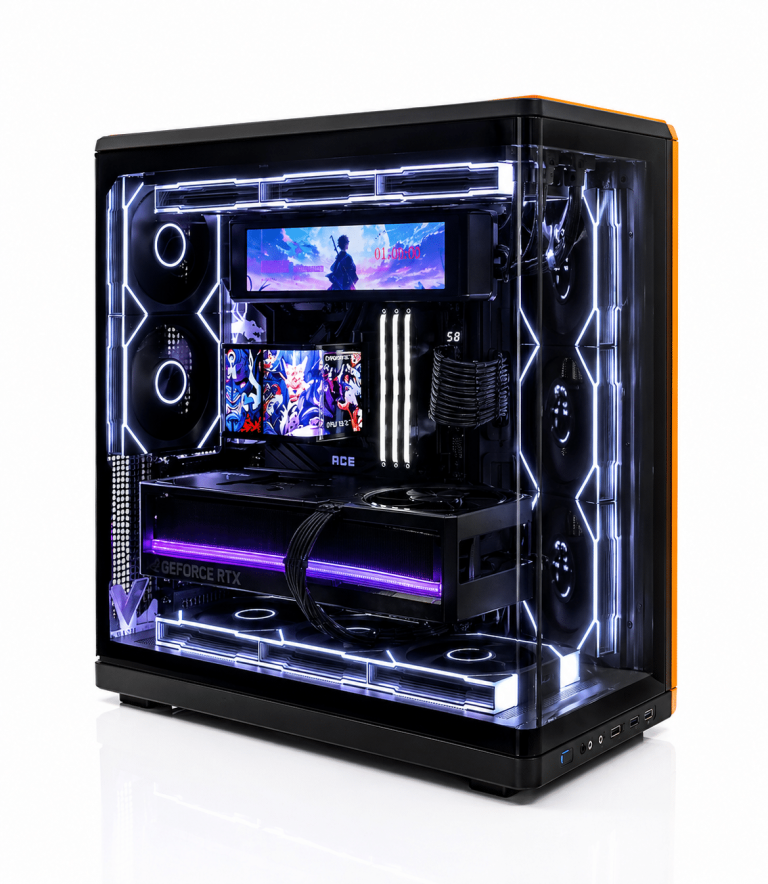
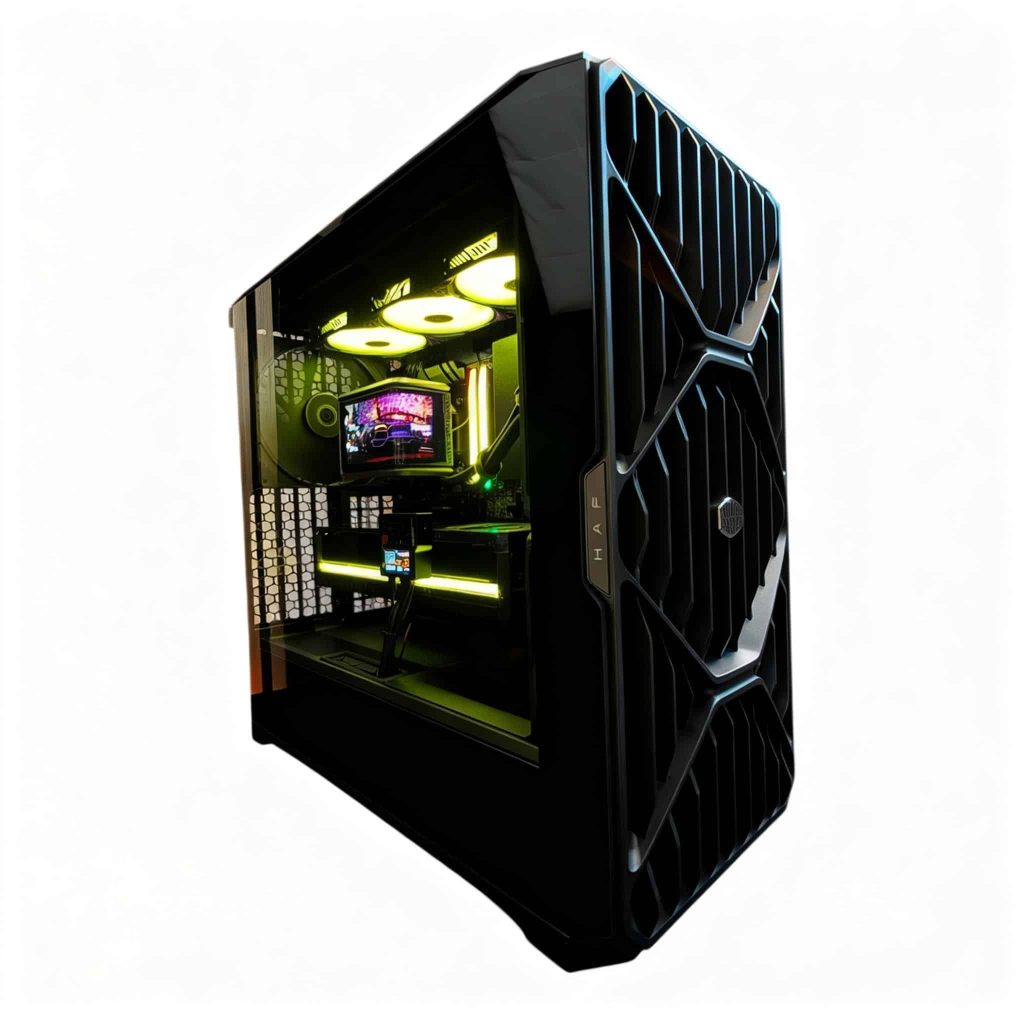
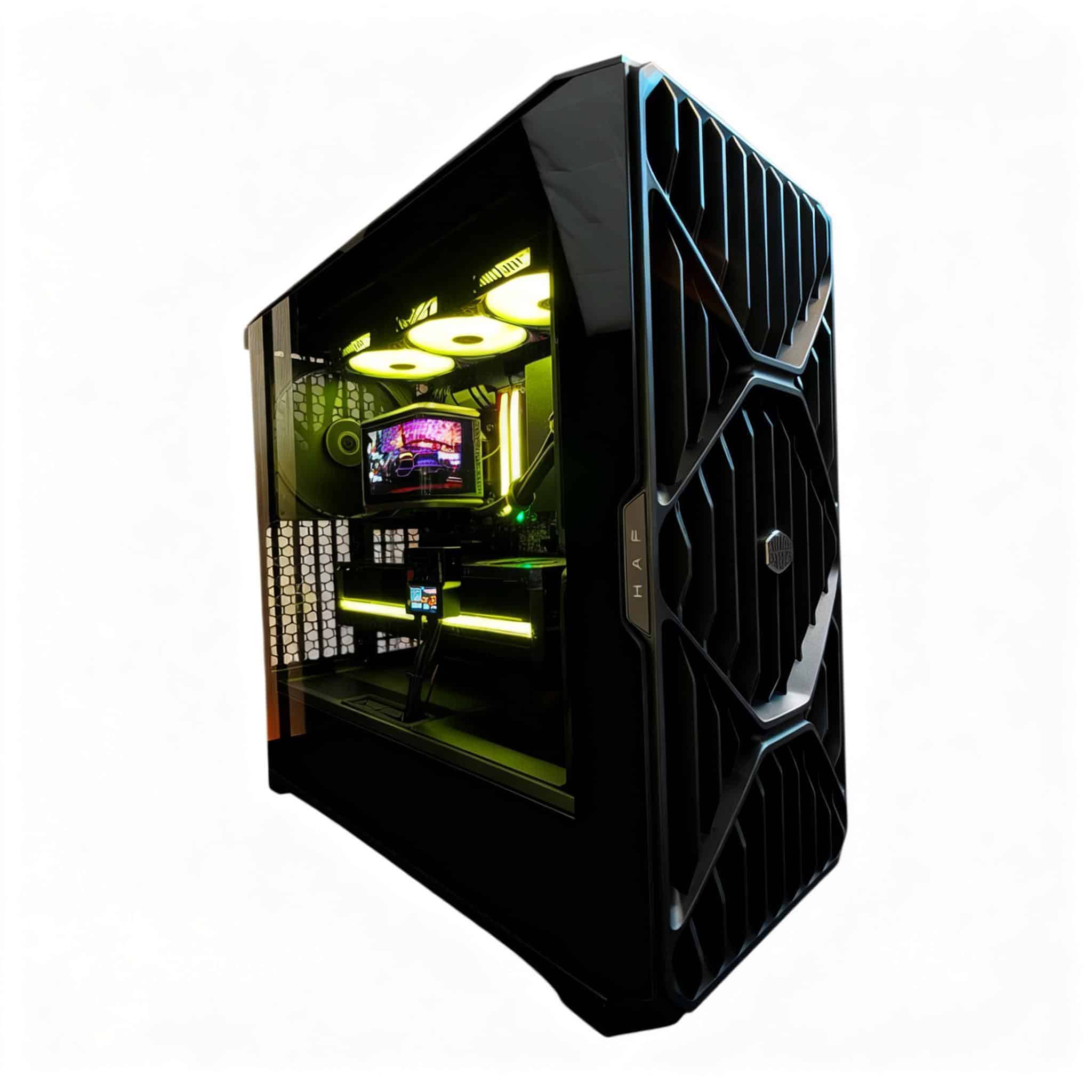
- LUX HAF II 500 9950X3D2 RTX 5090: Our most workstation-focused build, pairing the 16-core 9950X3D2 Dual Edition with an RTX 5090 and its 32 GB of VRAM.
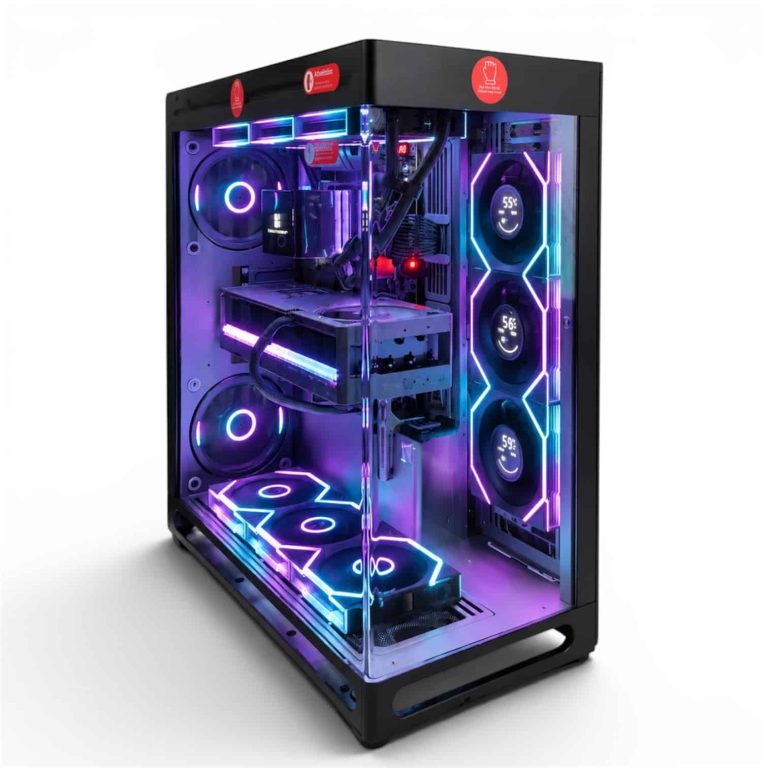
- LUX Master Stage 5090 and LUX View Duo 5090 Ultra: RTX 5090 systems for GPU rendering and AI; tell us your CPU and memory needs before we build.
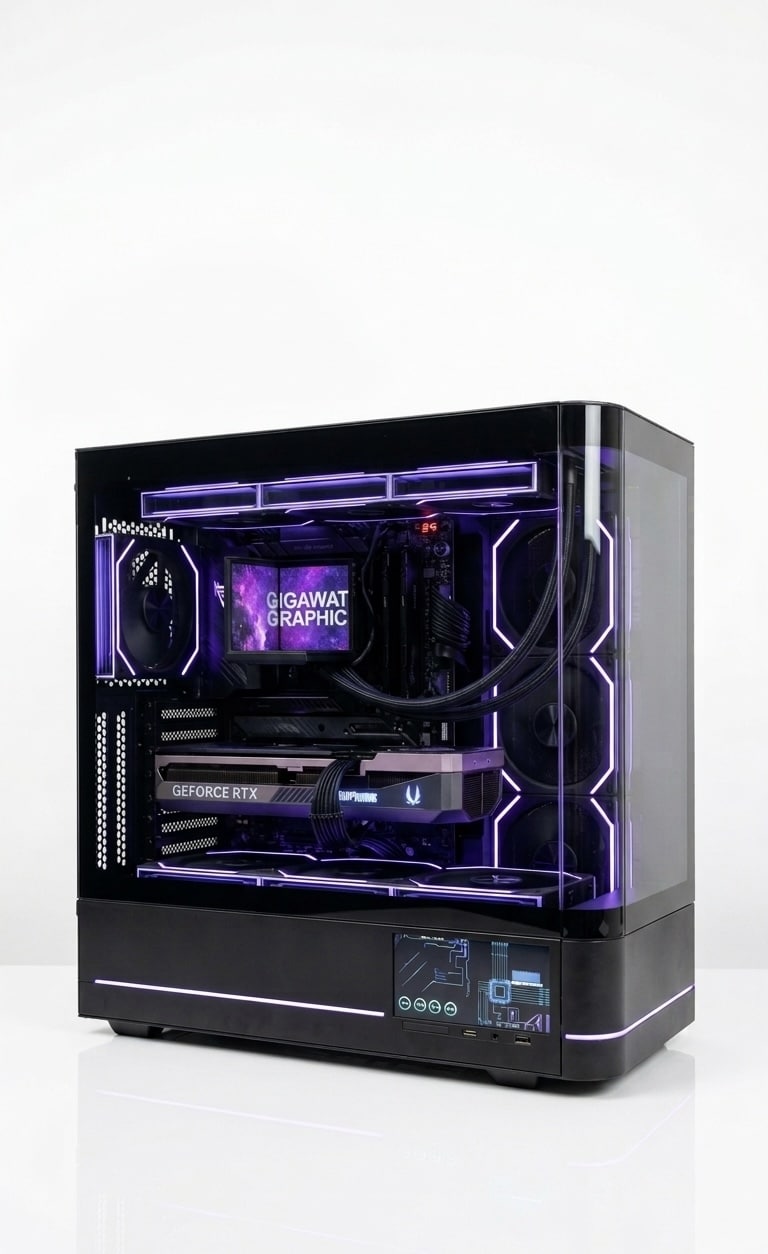
- LUX Optic 5080 Pro: An RTX 5080 build with 16 GB of VRAM for lighter pro work and editing.
Browse the full pro workstation range, or see every creator PC if your work leans toward video and streaming.
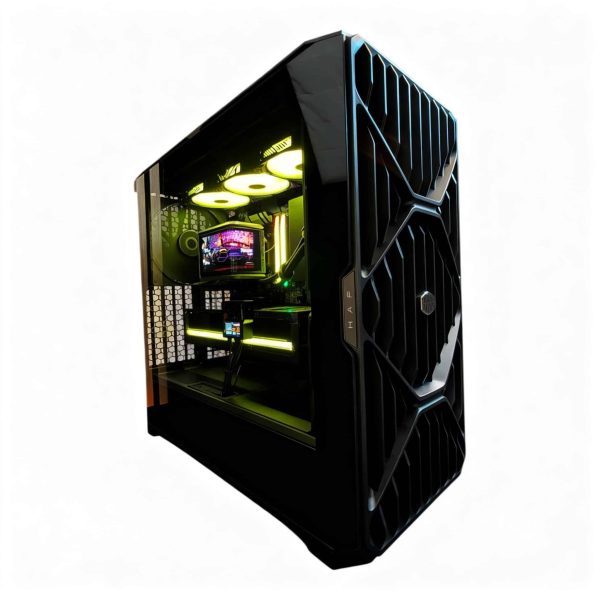
LUX HAF II 500 9950X3D2 RTX 5090
- GPURTX 5090
- CPURyzen 9 9950X3D2
- RAM64GB DDR5
- SSD4TB NVMe
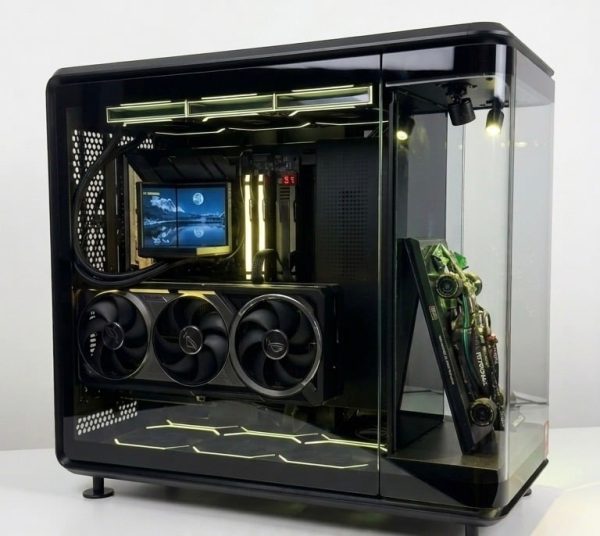
LUX Master Stage 5090
- GPURTX 5090
- CPURyzen 9 9950X3D
- RAM64GB DDR5
- SSD4TB NVMe
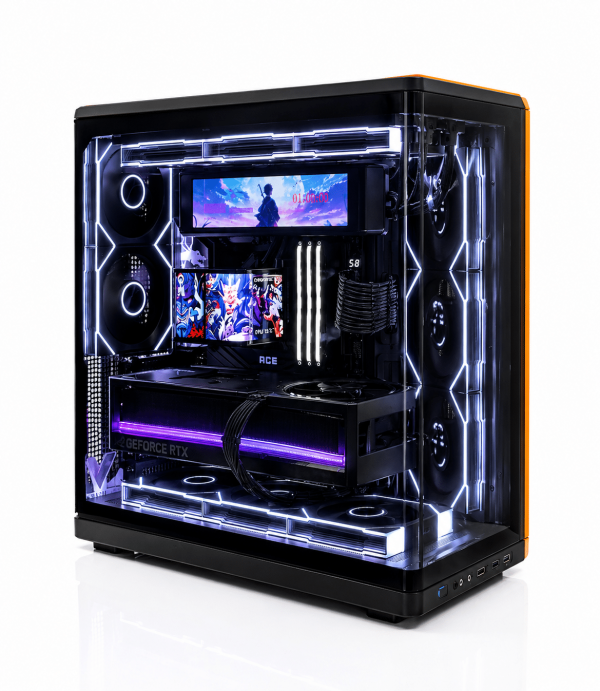
LUX View Duo 5090 Ultra
- GPURTX 5090
- CPURyzen 9 9950X3D2
- RAM64GB DDR5
- SSD4TB NVMe
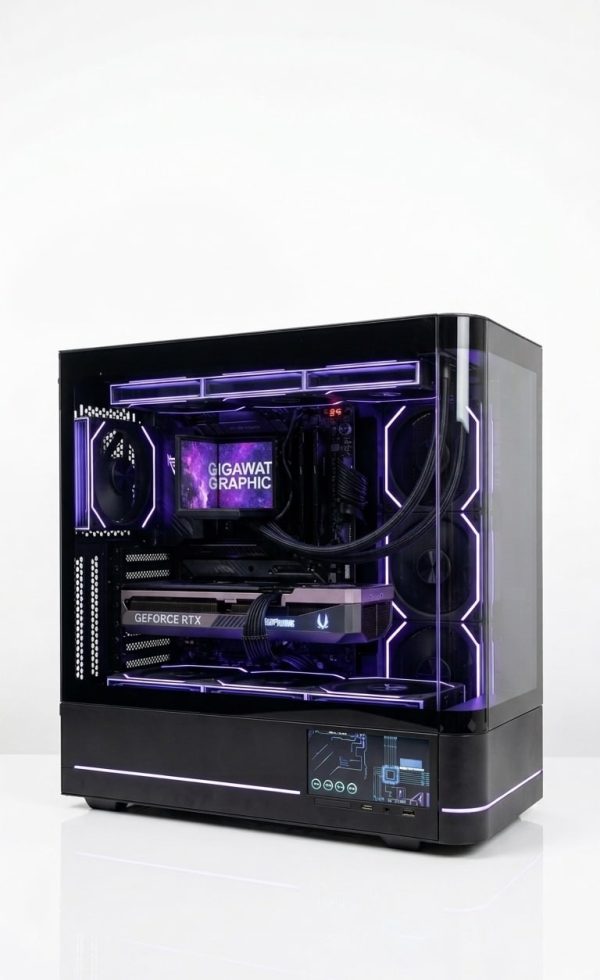
LUX Optic 5080 Pro
- GPURTX 5080
- CPURyzen 9 9900X3D
- RAM64GB DDR5
- SSD4TB NVMe
Workstation PC FAQ
Can a gaming PC work as a workstation?
Often, yes. A high-end gaming PC with an RTX 5090 or RTX 5080 already has a strong GPU. The usual upgrades are more cores, 64 GB or more of RAM and extra NVMe drives for projects and cache.
Do I need ECC memory in a PC workstation?
Only if your work or your software vendor requires it. AMD lists ECC support for Ryzen 9000 with motherboard support required, so check the board first. Most creative workloads run on non-ECC DDR5.
Should I buy a GeForce or a professional GPU?
For rendering, editing and AI, GeForce RTX 50 cards with Studio Drivers are the value choice, and the RTX 5090’s 32 GB covers most scenes. Choose a professional card when your CAD or engineering software requires certified drivers.
Is the 9950X3D2 worth it over the 9950X3D?
Both have 16 cores. The Dual Edition adds 64 MB more L3 cache (192 MB versus 128 MB) and has a 200 W default TDP versus 170 W. It’s worth it only if your apps benefit from cache, so check results for your workload first.
How much does a workstation cost in 2026?
It depends mostly on the GPU and memory. For scale, the RTX 5090 launched at $1,999 and the Ryzen 9 9950X3D at $699, and 64 GB of DDR5 runs roughly $1,000 to $1,400 at the time of writing. Street prices for graphics cards and RAM are well above launch MSRP in 2026 because of the memory shortage, so check our product pages for current pricing on each workstation PC.
The Bottom Line
For most professionals, the best workstation PC in 2026 pairs a 16-core Ryzen 9 9950X3D or 9950X3D2 with an RTX 5090, 64 GB to 128 GB of DDR5 in two modules, separate NVMe drives and a power supply with real headroom. Choose an RTX 5080 build if your work is lighter or your projects fit in 16 GB of VRAM.
Explore our pro workstations, or email our builders at sales@luxvibepcs.com or use the contact form with your software and project sizes. Real builders answer your questions.