The best 4K gaming monitor for you is the one whose refresh rate, HDR performance and connections match the graphics card driving it, not simply the model with the biggest numbers on the box. A 240 Hz panel adds little if your GPU cannot feed it, and a brilliant GPU is held back by a dim, slow screen.
We build PCs rather than sell displays, so this is not a list of models. It is the checklist our builders use when customers ask which 4K gaming monitor to pair with a new system: panel types, refresh rates, VESA DisplayHDR tiers, DisplayPort 2.1 and HDMI 2.1, and G-SYNC versus FreeSync.
In This Guide
Start With Your Graphics Card
A monitor can only display the frames your PC delivers, so decide on the GPU tier first and choose a 4K gaming monitor to match it.
- RTX 5090: the card for 4K at 240 Hz and up. NVIDIA rates RTX 50 Series output at up to 4K 480 Hz with DSC over DisplayPort 2.1b (UHBR20).
- RTX 5080: a natural match for 4K at 144 Hz to 240 Hz, with DLSS Multi Frame Generation helping fill the higher refresh rates.
- RTX 5070 Ti or RX 9070 XT: both have 16 GB of VRAM and pair well with a 4K gaming monitor at 144 Hz, with upscaling on in demanding games.
If you have not picked a card yet, our guide to the best GPU for 4K gaming ranks each option with official specs.
Panel Types: OLED, Mini-LED, IPS and VA
In a 4K gaming monitor, the panel technology shapes contrast, brightness and motion more than any other spec.
- OLED (including QD-OLED): every pixel makes its own light, so blacks are truly black and pixel response is extremely fast. The tradeoffs are lower full-screen brightness than the best LCDs and a risk of burn-in from static elements such as HUDs and taskbars.
- Mini-LED: an IPS or VA LCD lit by many small local-dimming zones. It gets very bright for HDR highlights, but bright objects on dark backgrounds can show a halo, called blooming. More zones generally means less of it.
- IPS (edge-lit): accurate color and wide viewing angles at a lower cost, but blacks look gray in a dark room and HDR impact is limited.
- VA: higher native contrast than IPS, though slower dark transitions on some panels can cause smearing in fast scenes.
| Panel | Strengths | Weaknesses | Best for |
|---|---|---|---|
| OLED | Perfect blacks, fastest response | Burn-in risk, lower full-screen brightness | Dark-room play, HDR, motion clarity |
| Mini-LED | Very bright HDR, no burn-in | Blooming, thicker chassis | Bright rooms, HDR highlights |
| IPS | Color accuracy, viewing angles | Weak blacks, limited HDR | Mixed work and play |
| VA | High native contrast | Dark smearing on some panels | Budget contrast in dim rooms |
Our builders lean toward an OLED 4K gaming monitor for players in darker rooms and Mini-LED for bright rooms or anyone who leaves static content on screen for hours.
Refresh Rate: Is a 4K Gaming Monitor 144Hz Enough?
For most players, yes. A 4K gaming monitor at 144Hz is the baseline we recommend: it feels dramatically smoother than 60 Hz and, with upscaling, is a realistic target for current-generation cards. AMD’s own FreeSync Premium tier requires a maximum refresh rate of at least 120 Hz on displays 3,440 pixels wide or more, which includes 4K.
Higher-end 4K gaming monitor panels now go well beyond 144 Hz. They make sense in two cases:
- You own an RTX 5080 or RTX 5090 and want to use Multi Frame Generation, which NVIDIA says can generate up to five frames per rendered frame.
- You play fast shooters at 4K and value motion clarity as much as detail.
If your GPU averages well below the panel’s maximum, variable refresh rate (covered below) keeps motion smooth anyway, so a faster panel is never a liability, just extra money.
Screen Size and Pixel Density
Every 4K gaming monitor is 3840 x 2160 pixels regardless of size, so the screen size decides how sharp the image looks and how much Windows scaling you need.
| Size (16:9) | Pixel density | What to expect |
|---|---|---|
| 27 inch | ~163 PPI | Razor sharp; usually needs about 150% scaling |
| 32 inch | ~138 PPI | Our desk sweet spot; crisp at 100% to 125% scaling |
| 42 inch | ~105 PPI | Immersive; sit farther back |
| 48 inch and up (TV) | ~92 PPI or less | Couch and controller play |
For a typical desk, 32 inches is where 4K pays off most clearly. A 27-inch 4K panel looks stunning for text and photo work, but the gaming benefit over a lower resolution at that size is smaller.
HDR: How to Read the VESA DisplayHDR Badge
On a 4K gaming monitor spec sheet, a generic “HDR” sticker tells you almost nothing. VESA’s DisplayHDR certification sets measurable minimums, and every tier requires support for the HDR10 format.
- DisplayHDR 400: 400 cd/m² peak brightness and a 1,300:1 contrast ratio. An entry badge, not a reason to buy on its own.
- DisplayHDR 600: 600 cd/m² and 8,000:1 contrast, with 95% DCI-P3 coverage.
- DisplayHDR 1000: 1,000 cd/m² and 30,000:1 contrast. This is where LCD HDR starts to look convincing.
- DisplayHDR 1400: 1,400 cd/m² and 50,000:1 contrast for the brightest LCDs.
- DisplayHDR True Black 400 to 1400: tiers for emissive displays like OLED, with a maximum black level of 0.0005 cd/m².
Our rule of thumb: for an LCD, look for DisplayHDR 1000 or higher; for an OLED, look for a True Black tier. Remember that True Black peak numbers look lower on paper because those panels win on contrast, not raw brightness.
DisplayPort 2.1 vs HDMI 2.1
High refresh rates, 4K resolution and 10-bit HDR together need a lot of bandwidth, so the ports on your 4K gaming monitor and your GPU both matter.
- DisplayPort 2.1: VESA says that with UHBR20 support, DisplayPort 2.1 offers 80 Gbps of throughput over four lanes. For full UHBR20 performance, it recommends VESA-certified DP80 cables. Details are on the official DisplayPort site.
- HDMI 2.1: the Ultra High Speed HDMI Cable introduced with HDMI 2.1 supports up to 48 Gbps. TVs rely on HDMI 2.1 for 4K above 60 Hz.
- DSC (Display Stream Compression): a VESA standard that VESA describes as visually lossless, with typical compression of up to about 3:1. It is how GPUs reach the highest 4K refresh rates.
On the GPU side, RTX 50 Series cards offer DisplayPort 2.1b with UHBR20 and HDMI 2.1b. The RX 9070 XT offers DisplayPort 2.1a and HDMI 2.1b. Use DisplayPort for a desk monitor where possible, and HDMI 2.1 for a TV.
G-SYNC and FreeSync Explained
Variable refresh rate (VRR) matches the display’s refresh to your frame rate, removing tearing and reducing stutter. It matters on a 4K gaming monitor because frame rates swing more as scenes get heavier.
NVIDIA G-SYNC tiers
- G-SYNC Ultimate: uses NVIDIA’s top G-SYNC processors and targets HDR.
- G-SYNC: uses an NVIDIA processor, with a full VRR range and variable overdrive.
- G-SYNC Compatible: no NVIDIA processor, but validated by NVIDIA for a baseline VRR experience.
NVIDIA also lists G-SYNC Pulsar models, which combine VRR with variable frequency backlight strobing for sharper motion.
AMD FreeSync tiers
- FreeSync: tear-free play with low framerate compensation (LFC).
- FreeSync Premium: mandatory LFC and higher refresh requirements, including at least 120 Hz on 4K-width displays.
- FreeSync Premium Pro: adds HDR requirements that AMD says go beyond HDR 400. See AMD’s FreeSync tier page.
VESA notes that FreeSync is based on its Adaptive-Sync standard, which DisplayPort has supported since version 1.2a. In practice, choose G-SYNC or G-SYNC Compatible for a GeForce card and FreeSync Premium or Premium Pro for a Radeon card.
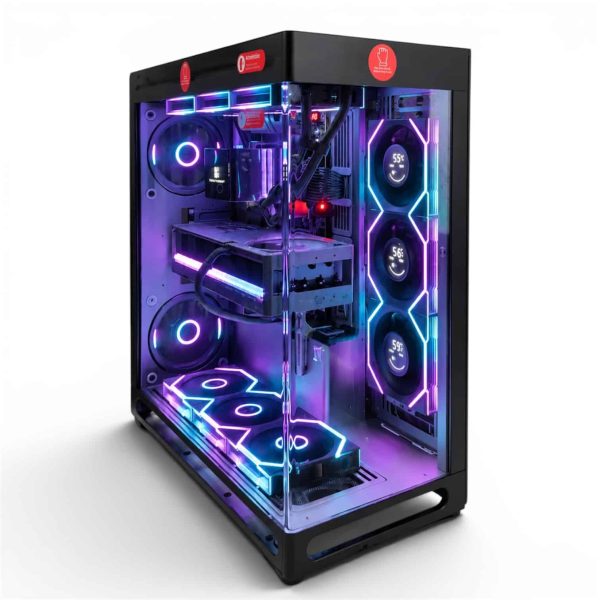
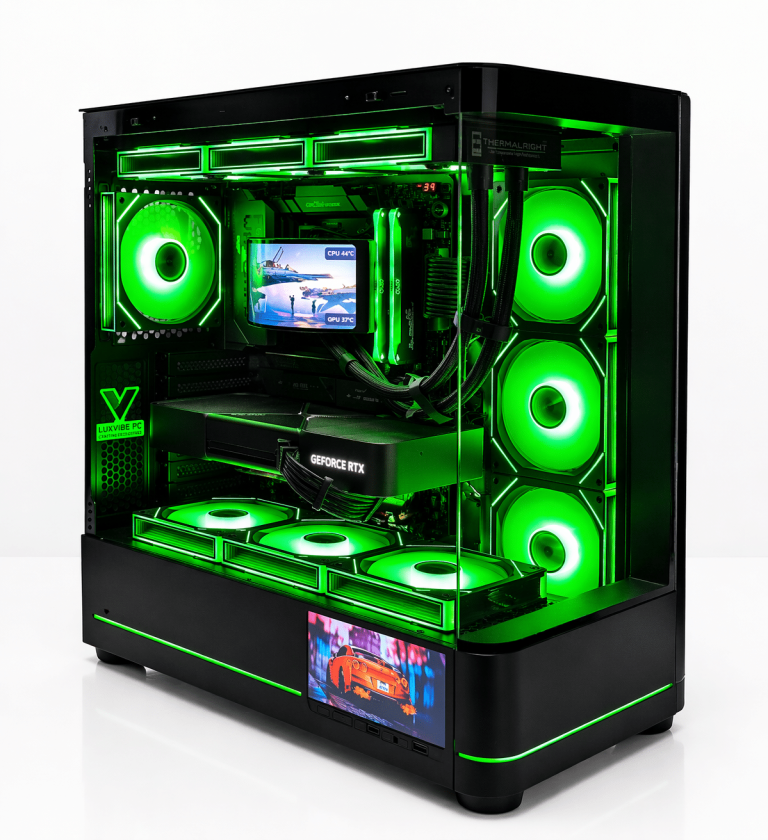
LUX View 5090
- GPURTX 5090
- CPURyzen 9 9950X3D
- RAM64GB DDR5
- SSD4TB NVMe
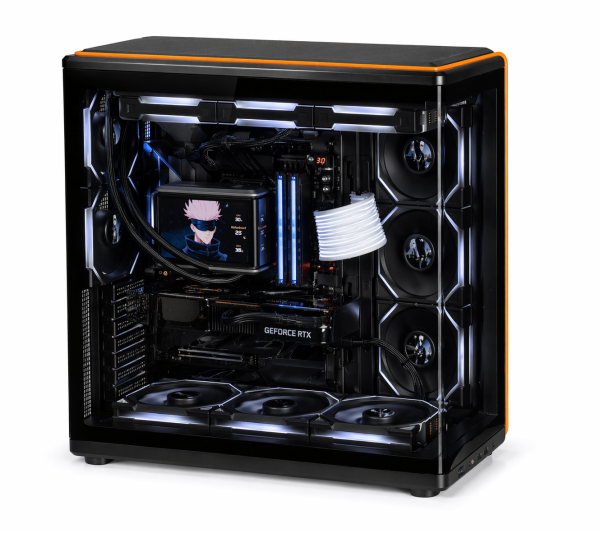
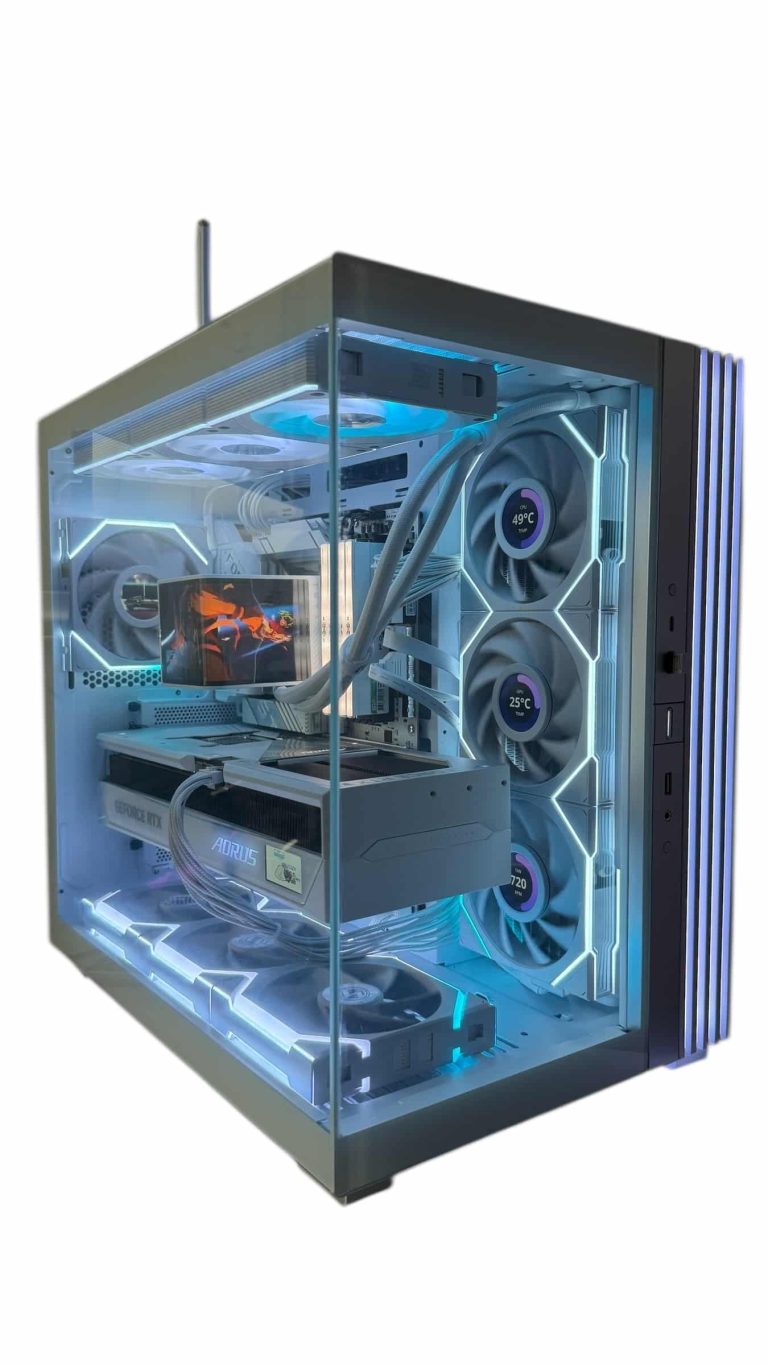
LUX View 5080
- GPURTX 5080
- CPURyzen 9 9950X3D
- RAM64GB DDR5
- SSD4TB NVMe
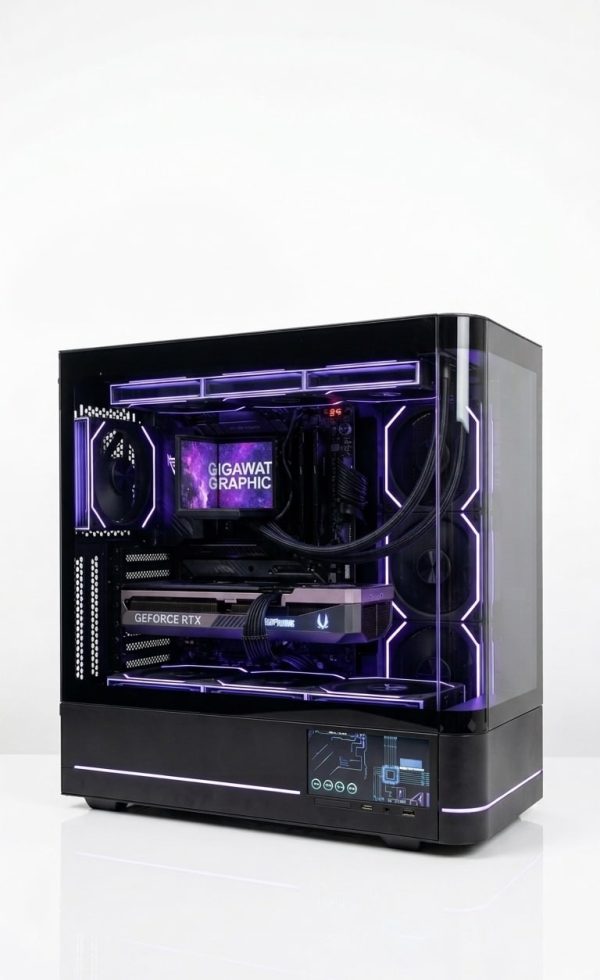
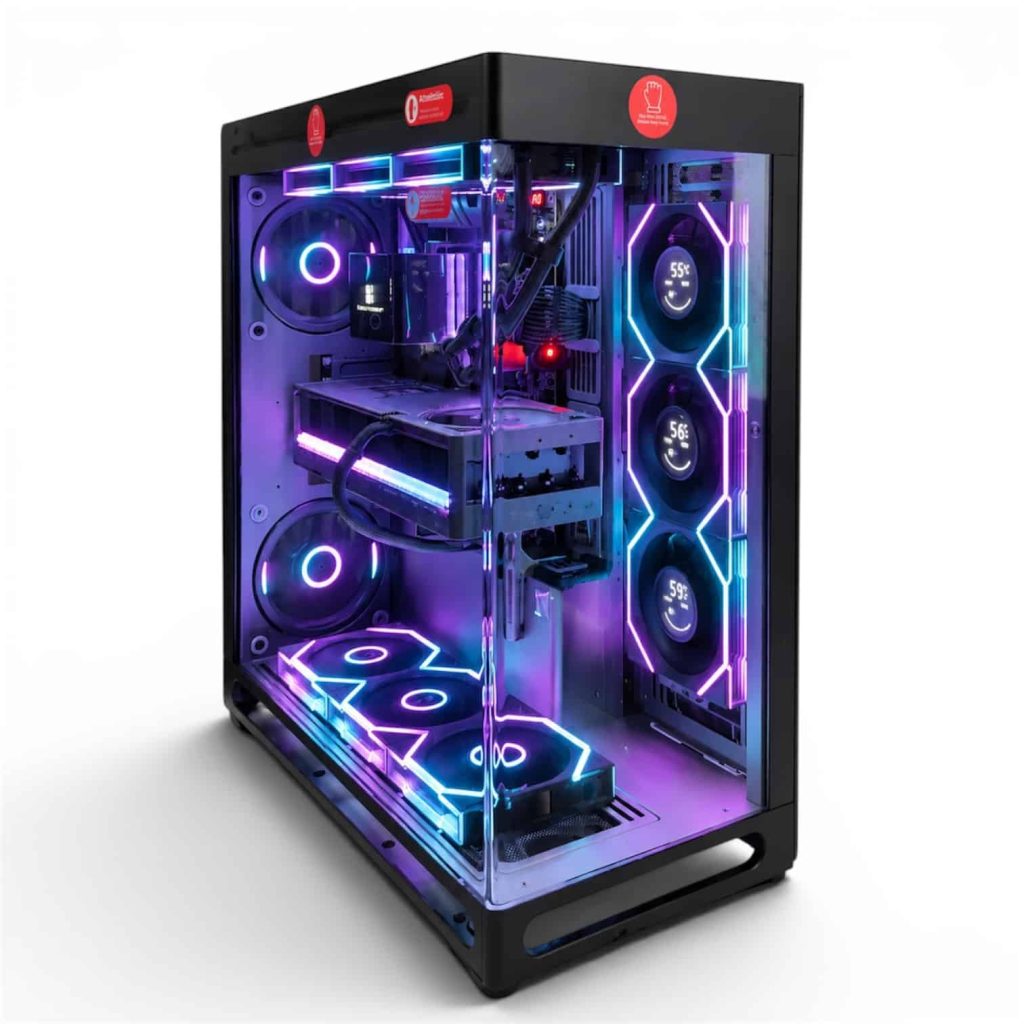
LUX Optic 5080 Pro
- GPURTX 5080
- CPURyzen 9 9900X3D
- RAM64GB DDR5
- SSD4TB NVMe
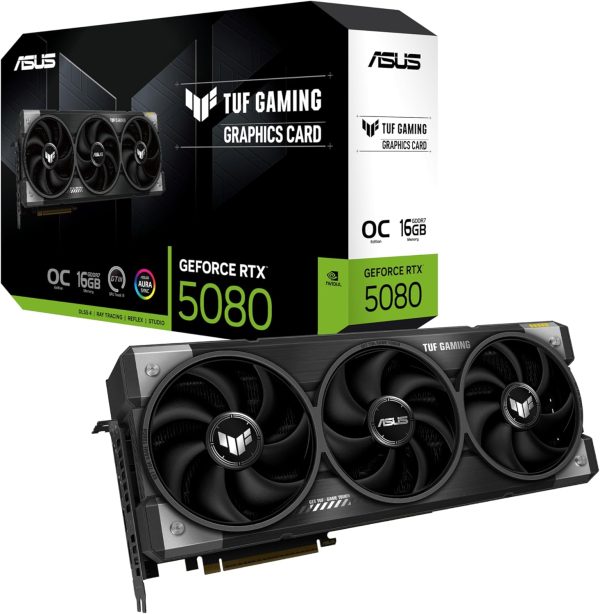
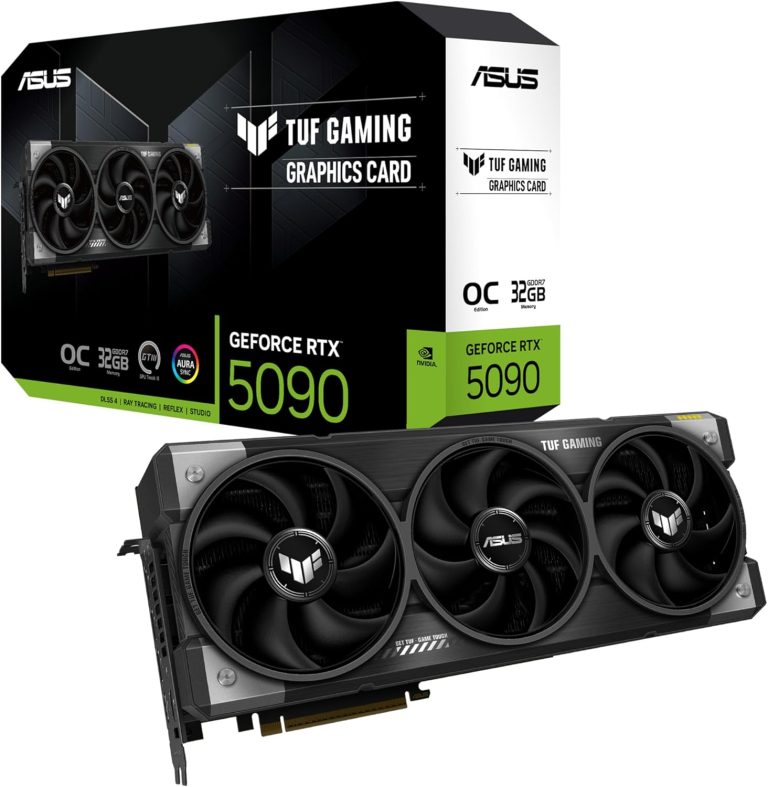
ASUS TUF Gaming RTX 5080
The ASUS TUF Gaming RTX 5080 puts NVIDIA GeForce RTX 5080 power into your desktop. It…
Best 4K Gaming Monitor Checklist
| Spec | What to look for | Why it matters |
|---|---|---|
| Refresh rate | 144 Hz minimum; 240 Hz+ with an RTX 5080 or 5090 | Smoothness and lower perceived lag |
| Panel | OLED for contrast and motion, Mini-LED for brightness | Biggest impact on image quality |
| HDR | DisplayHDR 1000+ (LCD) or True Black (OLED) | Real highlight and contrast range |
| Ports | DisplayPort 2.1 (UHBR20 ideal) plus HDMI 2.1 | Bandwidth for 4K at high refresh |
| VRR | G-SYNC Compatible or FreeSync Premium | No tearing when frame rates dip |
| Size | 32 inches for a desk | About 138 PPI, the 4K sweet spot |
| Ergonomics | Height and tilt adjustment | Comfort over long sessions |
Tick these boxes and you have the shortlist for the best 4K gaming monitor for your setup. If 4K starts to feel like too much screen for your GPU or budget, our guide to the best 1440p gaming monitor covers the alternative.
Best 4K Gaming Monitor FAQ
Is a 4K gaming monitor at 144Hz worth it over 60Hz?
Yes. Moving from 60 Hz to 144 Hz is one of the most noticeable upgrades in PC gaming. Even when your GPU cannot hold 144 fps in every game, VRR keeps the frame rates in between smooth, and upscaling closes much of the gap.
Is 27 inches too small for 4K?
Not too small, but it is less efficient. A 27-inch 4K screen is about 163 PPI and needs roughly 150% scaling. It is gorgeous for text and photos, while 32 inches shows off 4K detail in games more clearly.
Do I need DisplayPort 2.1 for a 4K gaming monitor?
Not for every panel, but it helps at the high end. DisplayPort 2.1 with UHBR20 offers 80 Gbps, which gives room for 4K at very high refresh rates. RTX 50 Series cards support it, and the RX 9070 XT supports DisplayPort 2.1a.
Should I worry about OLED burn-in?
It is a real risk with long hours of static content, such as HUDs, taskbars or productivity apps. Hiding the taskbar, using dark mode and varying what you play all help. If your screen shows static content all day, consider a Mini-LED 4K gaming monitor.
Can I use a 4K TV instead of a monitor?
Yes, for couch play. Make sure the TV has an HDMI 2.1 input and supports VRR, and use an Ultra High Speed HDMI cable. At a desk, a 32-inch 4K gaming monitor is easier on your eyes and neck.
The Bottom Line
For most buyers, the best 4K gaming monitor is a 32-inch panel at 144 Hz or more, with OLED (True Black certified) or a Mini-LED (DisplayHDR 1000 or higher), DisplayPort 2.1 and G-SYNC Compatible or FreeSync Premium support. Pair it with an RTX 5080 for high-refresh 4K, or an RTX 5090 if you want to push 240 Hz and beyond.
Need the PC to match? Every 4K gaming PC in our lineup is hand-built to order, and changes are always possible before we build. Want to know if your 4K plans make sense? Ask a real builder at sales@luxvibepcs.com or through our contact form.