Learning how to optimize PC for gaming in Windows 11 comes down to a short list of safe, built-in settings: keep Windows and your graphics driver current, confirm Game Mode is on, run your monitor at its full refresh rate, enable EXPO or XMP for your memory and tune each game’s graphics menu. No registry hacks or paid “booster” apps required.
Below, the Luxvibe PC build team shows how to optimize PC for gaming step by step, with exact Windows 11 menu paths, what each setting really does and the popular “tweaks” we skip on every PC we hand-build.
In This Guide
How to Optimize PC for Gaming: Quick Checklist
Short on time? This table is how to optimize PC for gaming in nine steps. Each row is a built-in Windows 11 setting or official vendor tool, and each change is easy to undo.
| Step | Where to find it | What it does |
|---|---|---|
| Update Windows | Settings > Windows Update | Current fixes and features |
| Update GPU driver | NVIDIA App or AMD Software | Launch-day game support |
| Game Mode | Settings > Gaming > Game Mode | On by default; confirm it |
| Windowed game optimizations | Settings > System > Display > Graphics | Lower latency in windowed DX10/DX11 games |
| GPU scheduling | Graphics > Advanced graphics settings | Moves scheduling work to the GPU |
| Refresh rate | Settings > System > Display > Advanced display | Uses your monitor’s full speed |
| Power mode | Settings > System > Power & battery | Set to Best performance |
| EXPO or XMP | BIOS / UEFI | RAM at its rated speed |
| Startup apps | Settings > Apps > Startup | Fewer background programs |
Update Windows and Your Graphics Driver
Open Settings > Windows Update, install anything pending and restart. It’s the least exciting way to optimize PC for gaming and one of the most useful, because new games are built and tested against current software.
On a GeForce card, use the NVIDIA App. NVIDIA says its Game Ready drivers are tested with developers for new game launches. The app also adds an overlay that shows FPS and latency, one-click GPU tuning and DLSS updates for many games.
On a Radeon card, use AMD Software: Adrenalin Edition. It handles driver updates and adds HYPR-RX, a one-click profile with a performance mode for lower input lag, plus Radeon Anti-Lag, which AMD says cuts input delay. Not sure which brand you own? Here’s how to check which graphics card you have.
How to Optimize PC for Gaming in Windows 11 Settings
Most of what you need to optimize PC for gaming is already built into Windows 11, so this step is more checking than changing.
Game Mode
Go to Settings > Gaming > Game Mode. It’s on by default in Windows 11, so you’re confirming nothing switched it off. Leave it on, but don’t expect it to transform frame rates on a modern desktop.
Optimizations for Windowed Games
Under Settings > System > Display > Graphics, turn on Optimizations for windowed games. Microsoft says it improves performance for DirectX 10 and 11 games in windowed or borderless mode, lowering frame latency and enabling Auto HDR and variable refresh rate on supported displays.
Hardware-Accelerated GPU Scheduling
On the same page, open Advanced graphics settings, turn on Hardware-accelerated GPU scheduling and restart. Microsoft’s DirectX team says it hands high-frequency scheduling work to a dedicated processor on the GPU, but also that users shouldn’t notice significant changes. The toggle only appears when your GPU and driver support it.
Power Mode
Go to Settings > System > Power & battery > Power mode and pick Best performance. If it’s locked, Microsoft notes a custom power plan may be active; choose Balanced in Control Panel > Power Options to unlock it.
Memory Integrity: Our Honest Take
Microsoft’s official memory integrity documentation notes the feature has a bigger performance impact on older processors. You can switch it off while playing, but that lowers your PC’s protection. We leave memory integrity on.
Run Your Monitor at Full Refresh Rate
If you only change one thing to optimize PC for gaming, make it this. A high-refresh monitor can sit at 60 Hz after setup, and Windows won’t warn you. Go to Settings > System > Display > Advanced display and choose the highest refresh rate listed. If yours is missing, check that:
- The cable goes into the graphics card, not the motherboard’s video outputs.
- The cable is rated for your resolution and refresh rate. RTX 50 Series cards offer DisplayPort 2.1b and HDMI 2.1b; Radeon RX 9000 cards offer DisplayPort 2.1a and HDMI 2.1b.
- The monitor’s own menu isn’t forcing an older input mode.
With a G-SYNC or FreeSync monitor, also turn on variable refresh in the monitor menu and your GPU software.
Turn On EXPO or XMP
DDR5 boots at a conservative default speed until you load its profile. JEDEC’s DDR5 standard starts at 4,800 MT/s, while gaming kits are usually rated faster. AMD calls the profile EXPO; Intel calls it XMP. Enabling it costs nothing and is one of the easiest ways to optimize PC for gaming on a new build.
- Restart and tap the BIOS key (usually Delete or F2) during boot.
- Find EXPO or XMP on the BIOS home screen or overclocking menu.
- Select the first profile, then save and exit.
- In Windows, confirm the Speed reading under Task Manager > Performance > Memory.
The first boot afterward can take longer while the board trains the memory. For Ryzen 9000, AMD lists DDR5-5600 with two modules as official, and DDR5-6000 EXPO kits are the common sweet spot. For capacity, see how much RAM for gaming you really need.
Tune In-Game Graphics Settings
Windows settings remove obstacles; in-game settings are where the frames are, and they’re the biggest lever when you optimize PC for gaming. Start with the preset that fits your hardware, then adjust:
- Upscaling: Play at native resolution and let upscaling recover performance. DLSS 4 added Multi Frame Generation, exclusive to RTX 50 Series, and DLSS 5 launched on RTX 50 Series on September 3, 2026. AMD’s FSR 4 runs on Radeon RX 9000.
- Ray tracing: Usually the most demanding option. Drop its preset before you touch textures.
- Textures: These lean on VRAM. Keep them high if your card has the memory; lower them if you see stutter.
- Shadows and volumetrics: Often costly, and High versus Ultra is hard to spot in motion.
Measure every change with the NVIDIA App overlay or AMD Software’s game stats. We treat frame generation as a smoothness boost on top of a solid base frame rate, not a rescue for a struggling one.
Control Heat and Background Apps
Heat is the hidden variable when you optimize PC for gaming. A PC that runs too hot lowers its own clocks, which shows up as frame drops late in a session. Clean the dust filters every few months, keep airflow moving front to back and keep cables clear of fans.
Then trim startup programs in Settings > Apps > Startup, or in Task Manager > Startup apps, which shows each app’s startup impact. Install games on an NVMe SSD, not a hard drive.
Tweaks to Skip When You Optimize PC for Gaming
Search for ways to optimize PC for gaming and you’ll find advice we never use on the systems we build:
- Registry hacks: Pasted “priority” or network edits are hard to audit, often target problems fixed long ago and can quietly break features.
- Debloat scripts: Stripping Windows components can break updates, the Microsoft Store, Xbox features or anti-cheat.
- Disabling updates or security: Real protection traded for little or no gain.
- Booster and RAM-cleaner apps: Windows already manages memory; these add another background process.
- Drivers from download sites: Get them from NVIDIA, AMD, Intel or your motherboard maker only.
Want more from the hardware? Use one-click GPU tuning in the NVIDIA App or the tuning built into AMD Software.
When Software Tuning Isn’t Enough
There’s a limit to how far you can optimize PC for gaming in software. Watch the overlay in a demanding scene:
- GPU usage near 100%: The graphics card is the limit. Our guide to the best graphics card for gaming compares today’s options.
- GPU usage well below 100% as frame rates sag: The CPU, memory or game engine is holding things back.
- Stutter with headroom to spare: Check VRAM use, storage and drivers first.
If your machine is several generations old, a new prebuilt gaming PC may be the better investment. Every Luxvibe PC is hand-built to order and shipped from Oshkosh, Wisconsin to the USA and worldwide, and upgrades and changes are always possible before we build. The LUX Optic 5070ti Core is a strong starting point, and the LUX View 5080 steps up to an RTX 5080.
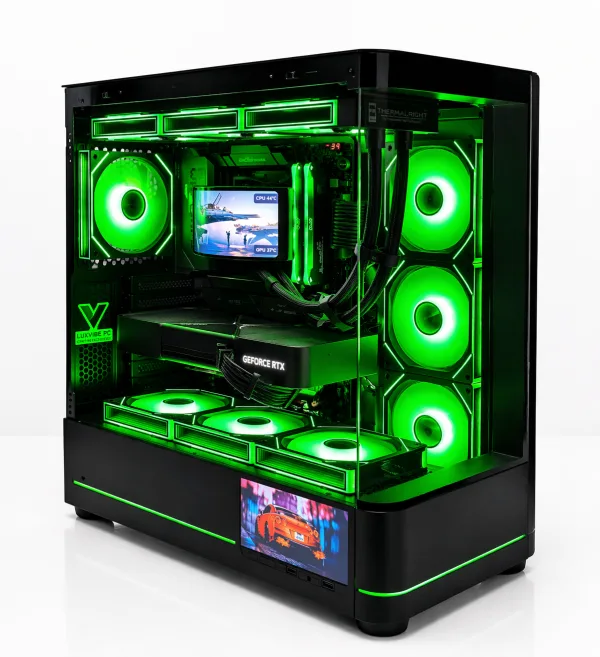
LUX Optic 5070ti Core
- GPURTX 5070 Ti
- CPURyzen 7 9800X3D
- RAM32GB DDR5
- SSD2TB NVMe
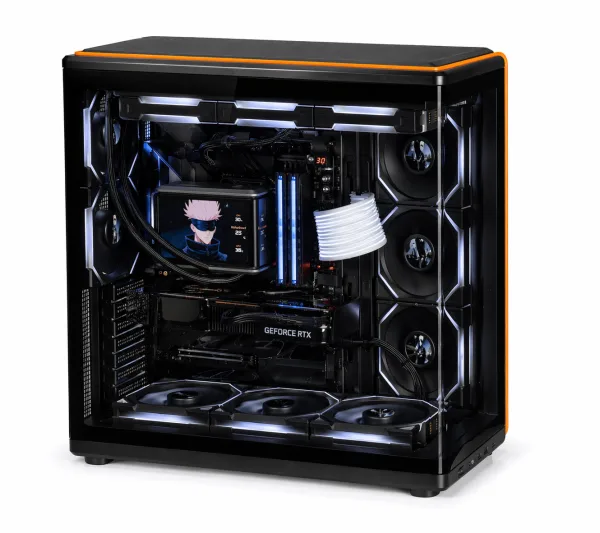
LUX View 5080
- GPURTX 5080
- CPURyzen 9 9950X3D
- RAM64GB DDR5
- SSD4TB NVMe
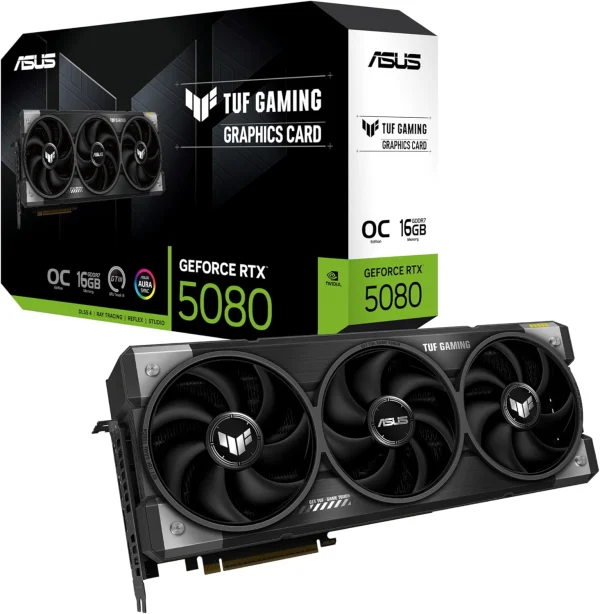
ASUS TUF Gaming RTX 5080
The ASUS TUF Gaming RTX 5080 puts NVIDIA GeForce RTX 5080 power into your desktop. It…
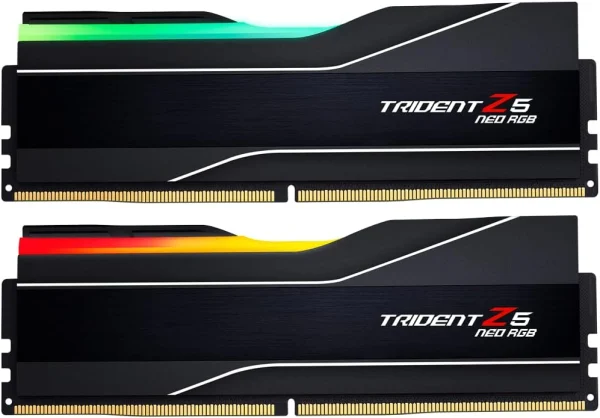
G.SKILL Trident Z5 Neo
The G.SKILL Trident Z5 Neo is a 64GB (2 x 32GB) DDR5 memory kit running at…
How to Optimize PC for Gaming FAQ
Does Game Mode really make games faster?
Game Mode is on by default in Windows 11; leave it that way. On a modern desktop it’s a sensible baseline, not a big frame rate lever. Drivers, refresh rate, EXPO and in-game settings do more to optimize PC for gaming.
Should I turn on hardware-accelerated GPU scheduling?
Yes, if the toggle appears under Advanced graphics settings. Microsoft built it to make GPU scheduling more efficient but said users shouldn’t notice significant changes, so treat it as housekeeping, not a fix.
Does Xbox mode optimize PC for gaming?
Xbox mode is a full-screen, controller-friendly launcher in Windows 11 version 24H2 and later (supported markets only), found under Settings > Gaming > Xbox mode. On a desktop it’s a couch-gaming convenience, not a performance setting.
Is it safe to turn off memory integrity to optimize PC for gaming?
Microsoft says you can turn it off while gaming and back on afterward, but warns your PC may be vulnerable while it’s off. We leave it on for an everyday machine.
The Bottom Line
The fastest way to optimize PC for gaming is also the safest: update Windows and your GPU driver, confirm Game Mode, turn on windowed-game optimizations and GPU scheduling, run your monitor at full refresh rate, enable EXPO or XMP and tune each game with an overlay running. Skip the registry hacks.
If the hardware is still the bottleneck, browse our hand-built gaming PCs, or ask our builders at sales@luxvibepcs.com or through the contact form. Real builders answer your questions.