The best 1440p gaming monitor is the one that matches the graphics card driving it: a refresh rate your PC can actually feed, a panel type that suits your room, real HDR certification instead of a vague sticker, and the right port on the back. Get those four things right and 2560×1440 is one of the most satisfying ways to play.
Luxvibe PC doesn’t sell monitors, so there are no models to push here. This is what our builders explain when customers ask which screen to pair with a new PC: panel types, refresh rate, VESA DisplayHDR tiers, G-SYNC and FreeSync, ports, and the hardware that keeps a fast panel busy.
In This Guide
Why a 1440p Gaming Monitor Hits the Sweet Spot
A 2560×1440 panel has 3,686,400 pixels, about 1.78 times as many as 1080p, while 4K UHD has 2.25 times as many again. That middle position is why a 1440p gaming monitor works so well: games look clearly sharper than at 1080p, yet a modern graphics card can still push high frame rates without leaning as hard on upscaling as it would at 4K.
For background on the resolution itself, our explainer on what 1440p means and where it fits covers the naming, including why some brands call it “2K”.
Screen Size and Pixel Density
- 27-inch 16:9: about 109 pixels per inch (PPI). The classic size for a 1440p gaming monitor: crisp at desk distance and easy to take in at a glance.
- 32-inch 16:9: about 92 PPI, the same density as a 24-inch 1080p screen. More immersive, but text looks softer up close.
- 34-inch ultrawide (3440×1440): about 110 PPI and a wider view, with about 34% more pixels than standard 1440p for your GPU to fill.
Panel Types: IPS vs VA vs OLED
The panel decides contrast, color, motion handling and how the screen ages. All three types are common at this resolution.
| Panel | Strengths | Watch out for | Best for |
|---|---|---|---|
| IPS | Consistent color, wide viewing angles, fast modern panels | Grayish blacks in a dark room, corner glow | All-round gaming, bright rooms |
| VA | Highest contrast of the LCD types | Smearing in fast dark transitions on some models | Dark-room single-player games, movies |
| OLED (QD-OLED, WOLED) | Per-pixel light, true black, near-instant response | Burn-in risk with static HUDs, lower full-screen brightness, price | Premium HDR and motion clarity |
IPS is the safe all-rounder, with the trade-off that blacks look dark gray in a dim room. VA gives deeper blacks, but some models leave trails in shadowy scenes, so read independent motion testing first.
OLED lights each pixel on its own, which makes an OLED 1440p gaming monitor the premium choice for HDR and motion. The costs are price, lower full-screen brightness and burn-in risk with static taskbars. Check what the manufacturer covers for burn-in and let the pixel-refresh routines run.
Refresh Rate: Is a 1440p 240Hz Monitor Worth It?
Refresh rate is how many times per second the screen draws a new image. Higher rates shorten the wait between frames: 16.7 ms at 60 Hz, 6.9 ms at 144 Hz, 6.1 ms at 165 Hz, 4.2 ms at 240 Hz and 2.8 ms at 360 Hz.
Going from 60 Hz to 144 Hz is the change almost everyone notices right away. The step from 144 Hz to 240 Hz is smaller, but easy to feel in fast shooters and quick camera turns. That’s why a 1440p 240Hz monitor is the target we suggest for most players who care about smooth motion. Above 240 Hz, the benefit is mostly for competitive players with very fast systems.
Can Your PC Feed a 1440p 240Hz Monitor?
A 240 Hz screen only shows 240 new images per second when your PC renders 240 frames per second. At 1440p that’s about 885 million pixels every second, versus about 498 million at 1080p. Lighter esports games are where frame rates that high are most reachable; in demanding single-player games, frame rates land lower and adaptive sync keeps things smooth.
Upscaling and frame generation help. NVIDIA’s DLSS 4 added Multi Frame Generation, exclusive to RTX 50 Series cards, and AMD’s FSR Redstone suite covers Radeon RX 9000 cards. Generated frames look smoother, but responsiveness still follows the frames your GPU actually renders.
Response Time and Overdrive
Nearly every spec sheet claims “1 ms”, measured differently by each brand, so treat it as marketing. Start with the default or medium overdrive setting; the most aggressive mode often adds bright halos behind moving objects.
HDR on a 1440p Gaming Monitor: Read the DisplayHDR Badge
“HDR” on a box means little on its own. The reliable signal is VESA’s DisplayHDR certification, which tests luminance, black level, color gamut, bit depth and rise time. The number in each tier is its peak brightness requirement in nits, and every tier requires HDR10 support, according to VESA’s DisplayHDR program.
- DisplayHDR 400 and 500: entry tiers for LCDs. A little extra punch, not a dramatic HDR effect.
- DisplayHDR 600, 1000 and 1400: higher LCD tiers with much stricter contrast and black-level limits, which usually means local dimming.
- DisplayHDR True Black 400 to 1400: tiers for OLED and other emissive displays, built around extremely low black levels.
Our rule of thumb: if HDR matters, look for DisplayHDR 600 or higher on an LCD, or any True Black tier on an OLED. Below that, buy the 1440p gaming monitor for its SDR picture and refresh rate and treat HDR as a bonus. In Windows 11, switch HDR on under Settings > System > Display.
G-SYNC vs FreeSync
Adaptive sync lets the monitor change its refresh rate to match the frames your GPU delivers. It removes tearing without the lag of traditional V-Sync, and it’s the one feature we’d call non-negotiable.
Per AMD’s FreeSync tier requirements, monitors under 3440 pixels wide, which includes every 16:9 panel at 2560×1440, need at least 144 Hz for base FreeSync and at least 200 Hz for FreeSync Premium, which also requires low framerate compensation (LFC). Ultrawides 3440 pixels wide and up qualify for Premium from 120 Hz. FreeSync Premium Pro adds HDR requirements.
On NVIDIA’s side, G-SYNC Ultimate and G-SYNC monitors use an NVIDIA G-SYNC processor, while G-SYNC Compatible displays don’t but are validated by NVIDIA for tear-free variable refresh. Some newer models add G-SYNC Pulsar, which NVIDIA describes as variable-frequency backlight strobing for sharper motion. Many monitors carry both AMD and NVIDIA badges.
DisplayPort vs HDMI: Ports and Cables
- NVIDIA RTX 50 Series: DisplayPort 2.1b (UHBR20) and HDMI 2.1b, rated for up to 4K at 480 Hz or 8K at 165 Hz with DSC.
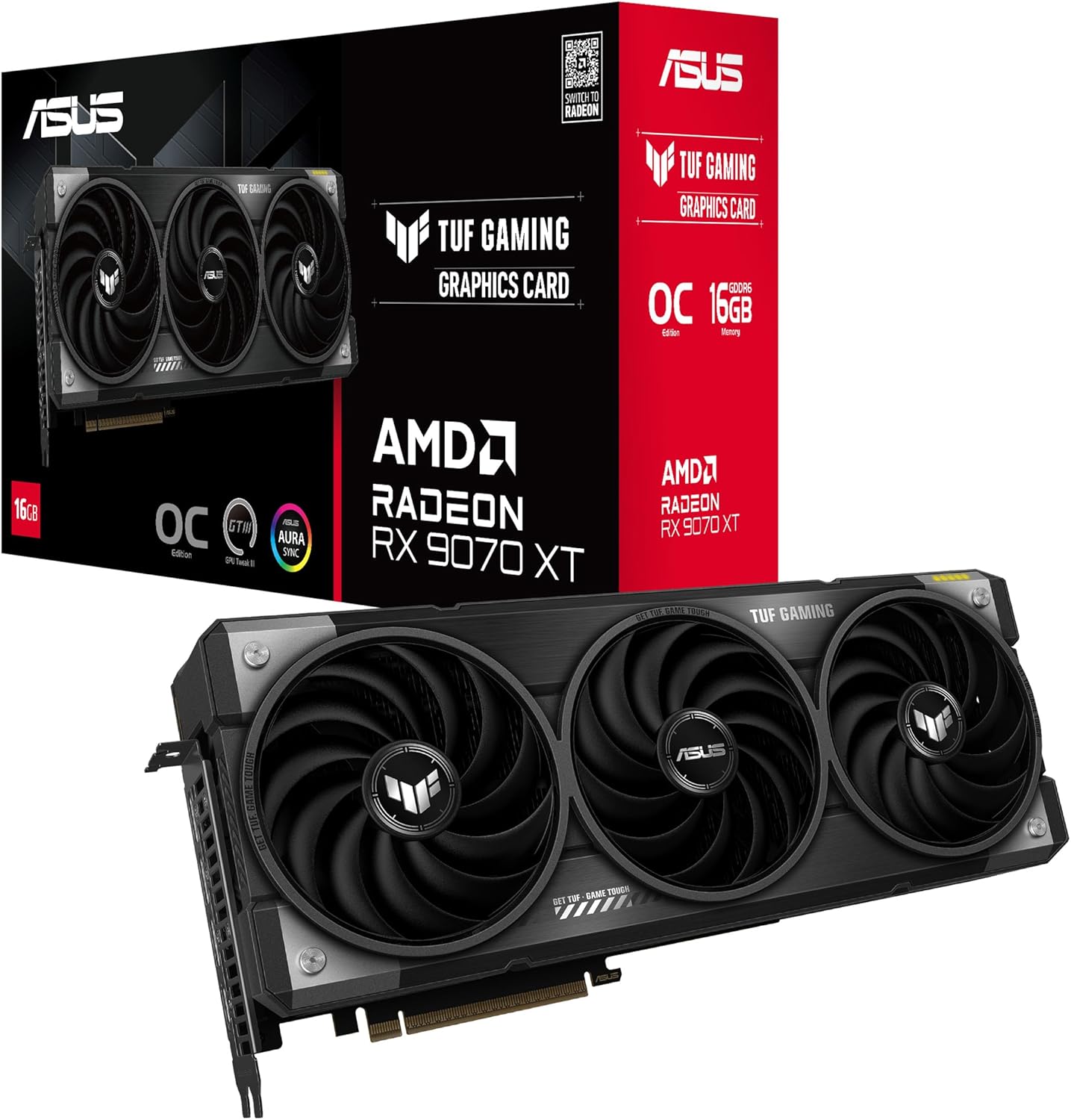
- AMD Radeon RX 9070 XT: DisplayPort 2.1a and HDMI 2.1b.
VESA says DisplayPort 2.1 with UHBR20 delivers up to 80 Gbps over four lanes and recommends certified DP80 cables for full speed. HDMI 2.1 uses Ultra High Speed HDMI cables rated for up to 48 Gbps, and adds gaming features such as variable refresh rate (VRR) and Auto Low Latency Mode (ALLM).
You don’t need a DisplayPort 2.1 monitor to run 2560×1440 at 240 Hz; the newest versions matter most at 4K and extreme refresh rates. The more common problem is a cheap, uncertified cable, so use the one in the box or a certified replacement. Plug the monitor into the graphics card, not the motherboard, and set the refresh rate in Settings > System > Display > Advanced display, because Windows doesn’t always pick the top rate on its own.
Pair the Best 1440p Gaming Monitor With the Right PC
A fast screen is only as good as the frames behind it. For a 1440p gaming monitor at 165 to 240 Hz, our builders usually start with one of three graphics cards:
| Spec | RX 9070 XT | RTX 5070 Ti | RTX 5080 |
|---|---|---|---|
| Memory | 16 GB GDDR6, 256-bit | 16 GB GDDR7, 256-bit | 16 GB GDDR7, 256-bit |
| Display outputs | DP 2.1a, HDMI 2.1b | DP 2.1b, HDMI 2.1b | DP 2.1b, HDMI 2.1b |
| Adaptive sync | FreeSync | G-SYNC | G-SYNC |
| Vendor PSU guidance | 750 W | 750 W | 850 W |
| Launch MSRP | $599 | $749 | $999 |
AMD positioned the RX 9070 XT against the RTX 5070 Ti and says it is over 40% faster on average than the RX 7900 GRE at 1440p. The RTX 5080 has about 20% more CUDA cores than the 5070 Ti, which buys headroom at high refresh rates. Street prices are well above MSRP in 2026 because of the memory shortage, so check our product pages for current pricing.
For a deeper look at the cards, read our guide to choosing a graphics card for 1440p. Or skip the parts list: every 1440p gaming PC we sell is hand-built to order, and upgrades are always possible before we build.
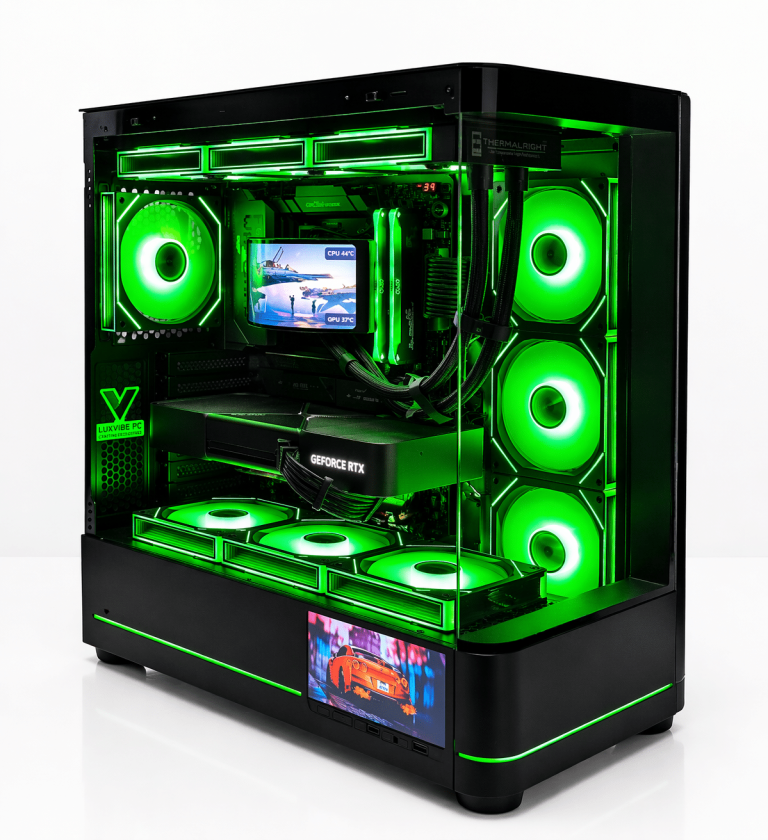
LUX Optic 5070ti Core
- GPURTX 5070 Ti
- CPURyzen 7 9800X3D
- RAM32GB DDR5
- SSD2TB NVMe
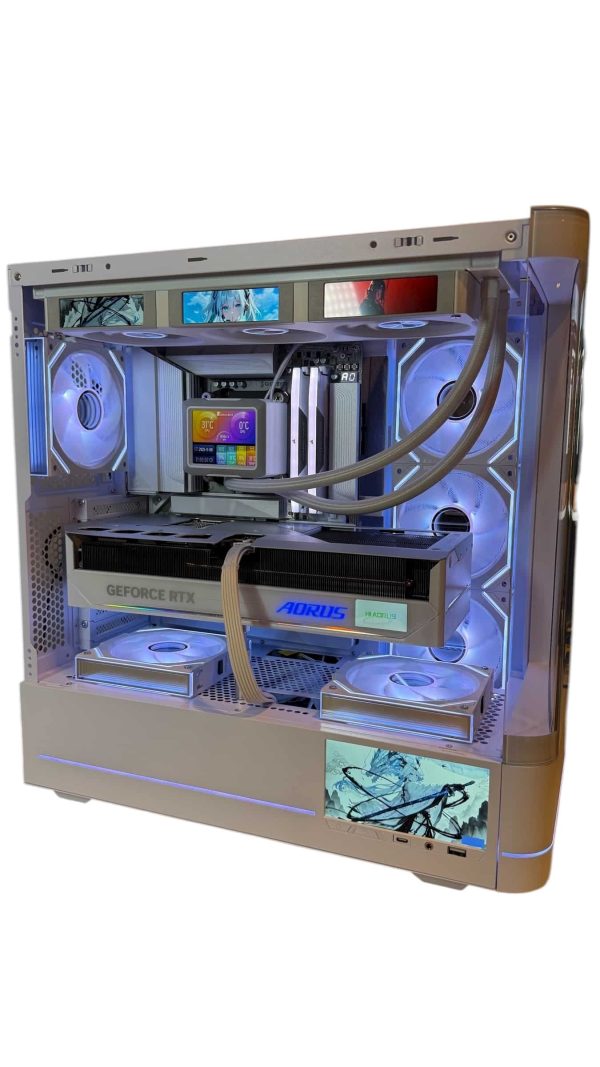
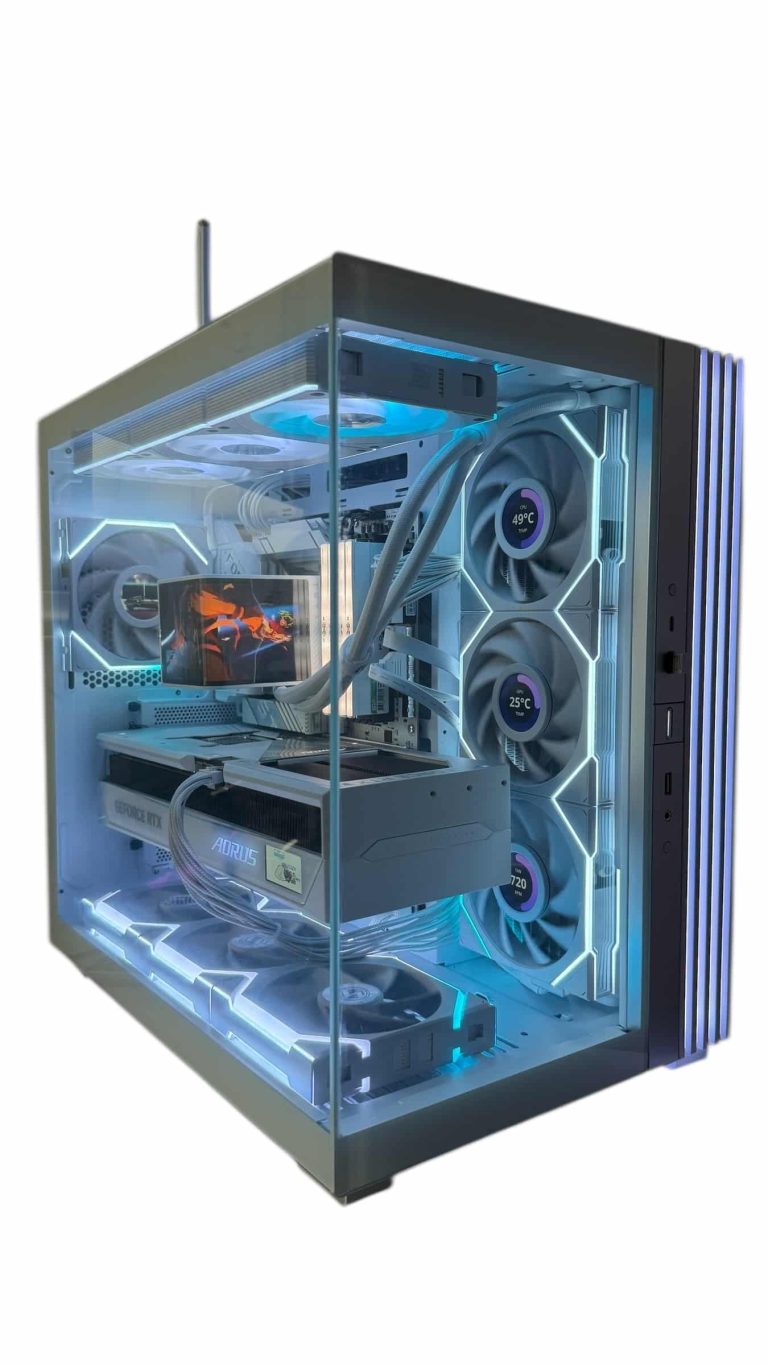
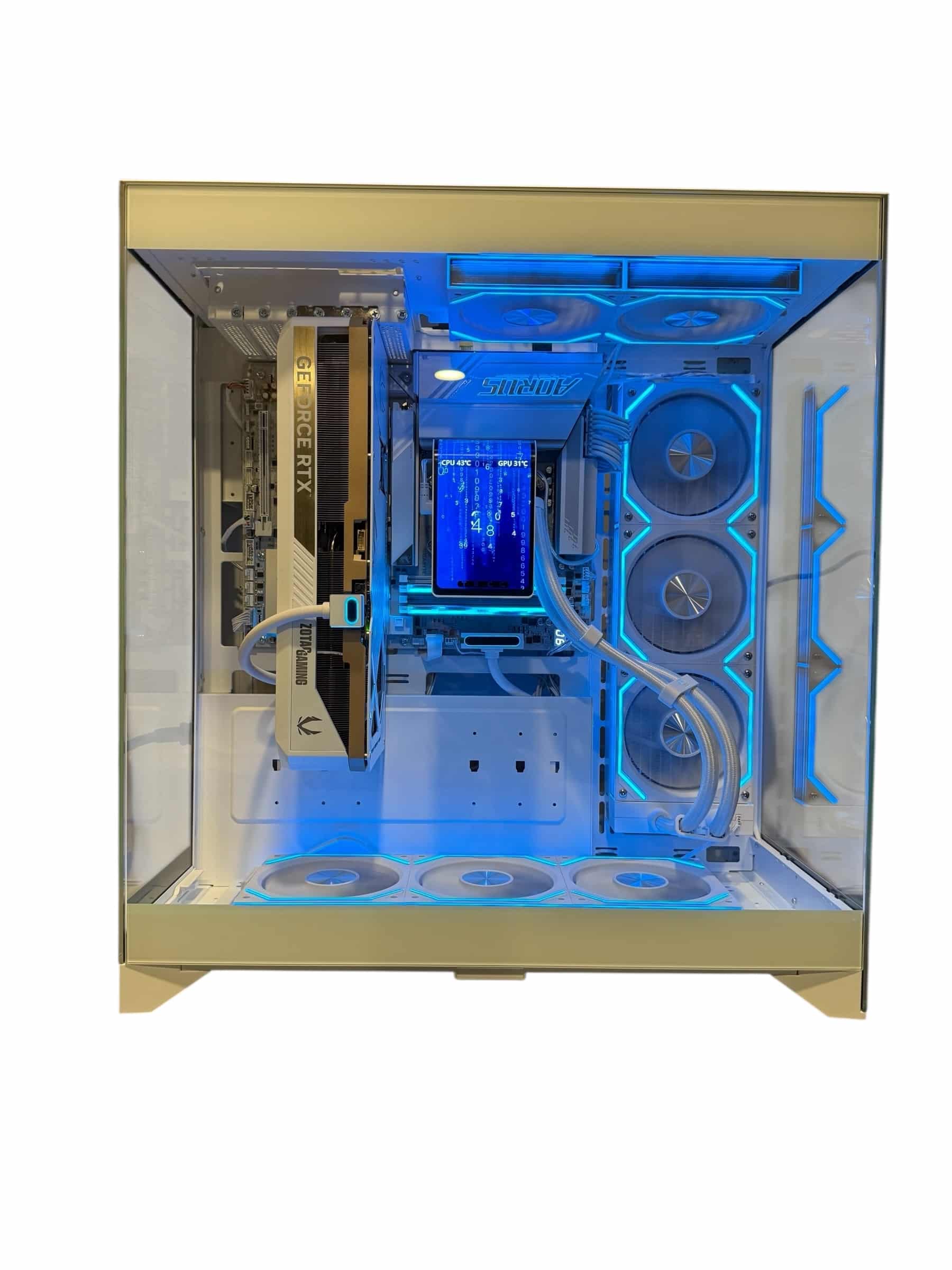
LUX Optic ICE 9070XT
- GPURX 9070 XT
- CPURyzen 7 9800X3D
- RAM32GB DDR5
- SSD2TB NVMe
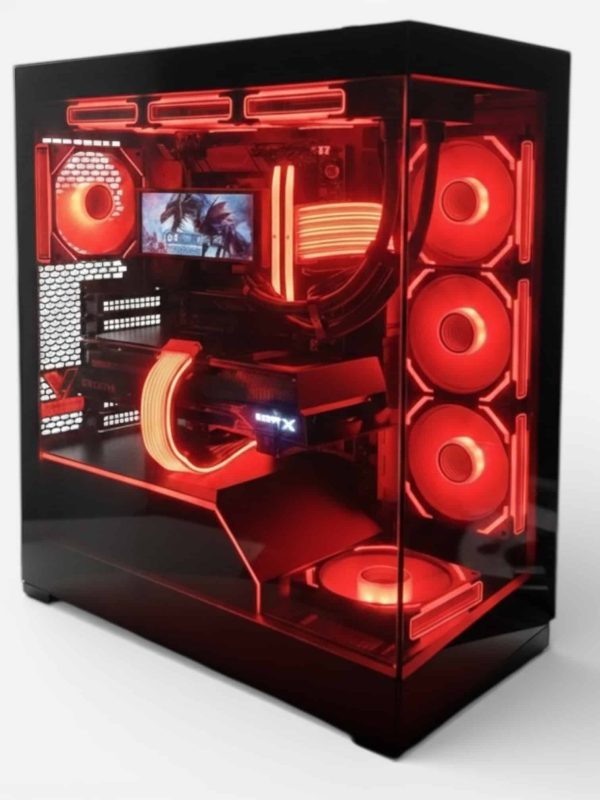
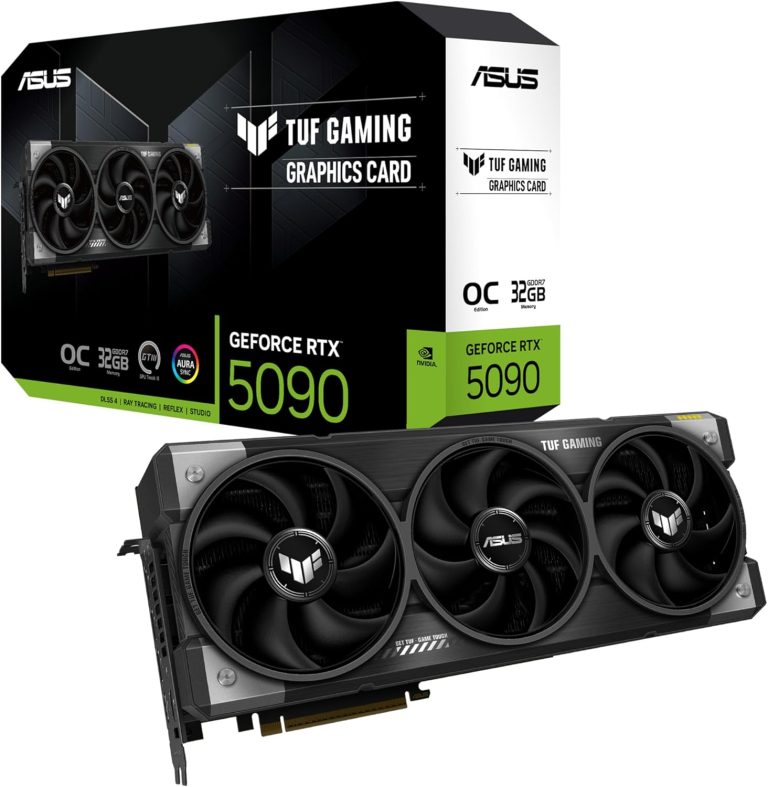
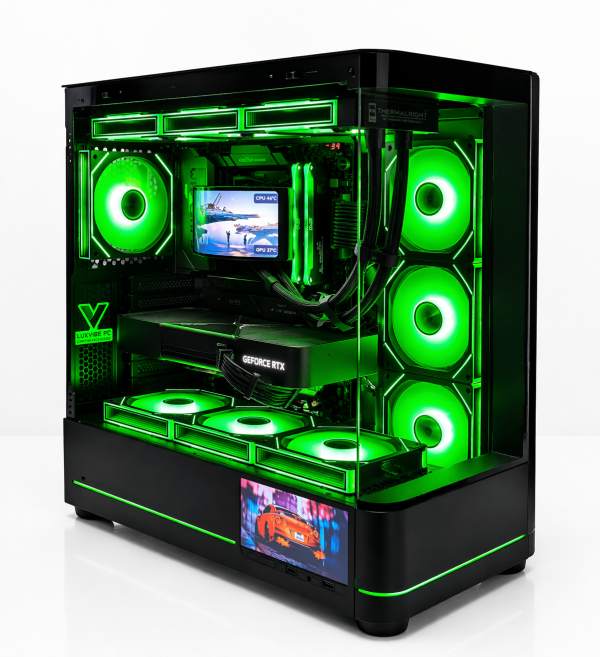
Lux Nv5 Black 9070XT
- GPURX 9070 XT
- CPURyzen 7 9800X3D
- RAM32GB DDR5
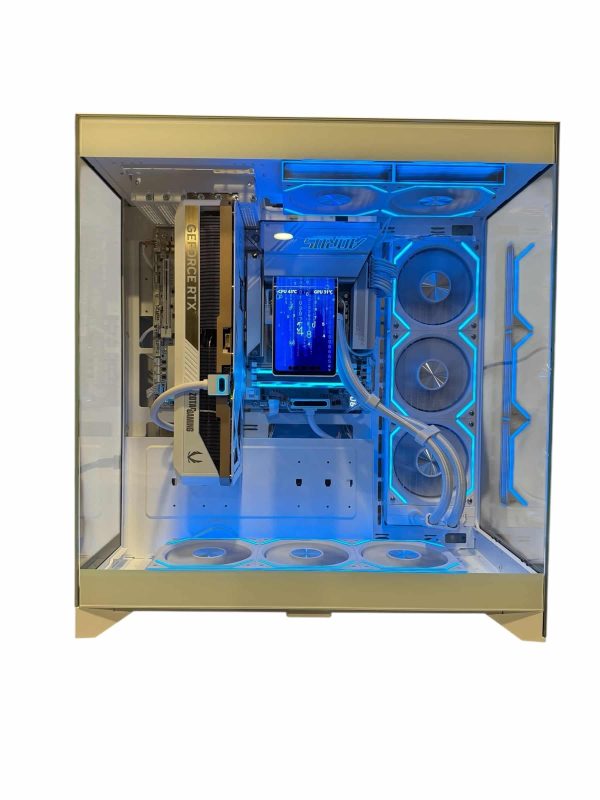
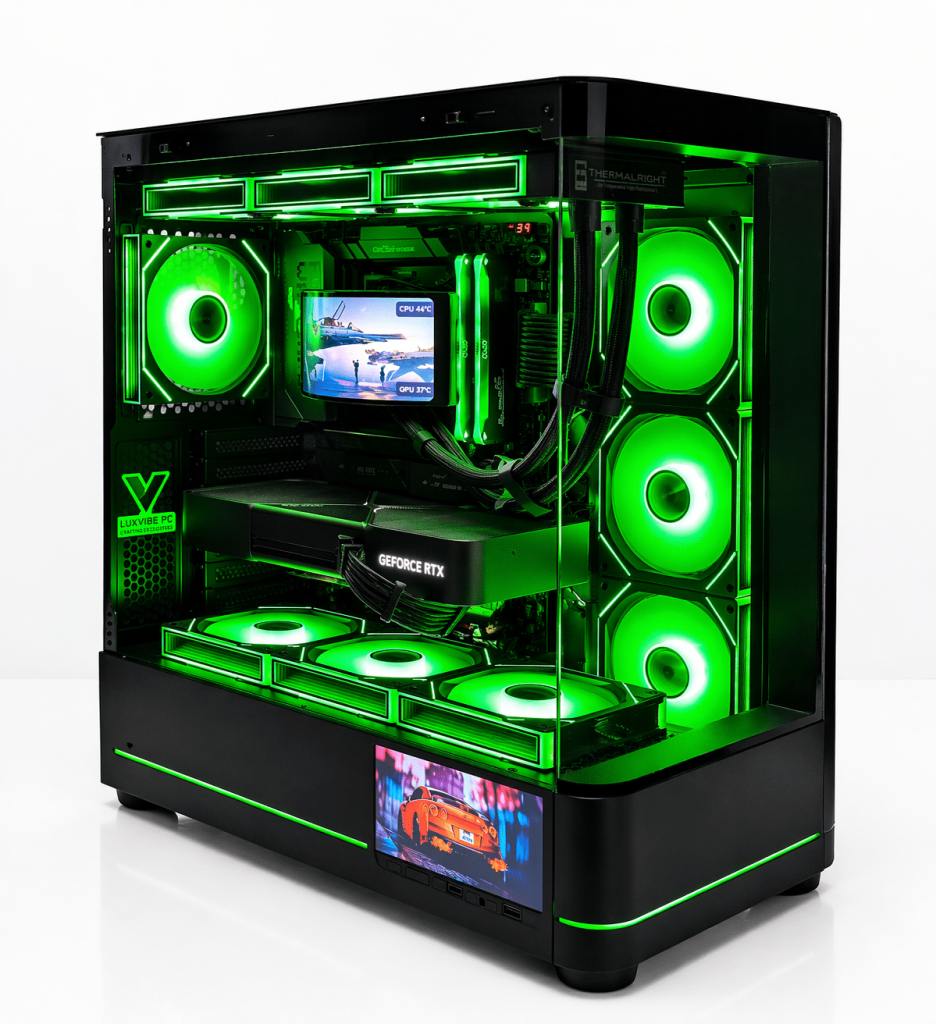
LUX V2 ICE 5080
- GPURTX 5080
- CPURyzen 7 9800X3D
- RAM32GB DDR5
- SSD2TB NVMe
Best 1440p Gaming Monitor Checklist
- Size: 27 inches for most desks, 32 inches if you sit farther back, a 34-inch ultrawide if your GPU has spare headroom.
- Panel: IPS for all-round use, VA for contrast on a budget, OLED for the best HDR and motion.
- Refresh rate: 165 Hz minimum for a new 1440p gaming monitor; 240 Hz for fast shooters if your GPU can keep up.
- HDR: DisplayHDR 600 or higher on LCD, or True Black on OLED.
- Adaptive sync: G-SYNC Compatible or better for GeForce, FreeSync Premium or better for Radeon.
- Ports: DisplayPort plus HDMI 2.1, with a certified cable.
1440p Gaming Monitor FAQ
Is a 1440p 240Hz monitor worth it?
Yes, if you play fast games and your GPU can deliver high frame rates. A 1440p 240Hz monitor refreshes every 4.2 ms versus 6.9 ms at 144 Hz. For slower single-player games, a quality 165 Hz panel is enough.
What size should a 1440p gaming monitor be?
27 inches is the sweet spot at about 109 PPI. A 32-inch 1440p gaming monitor drops to about 92 PPI, the same as a 24-inch 1080p screen, so text looks softer at desk distance.
Is OLED worth it for a 1440p gaming monitor?
OLED gives true blacks and near-instant pixel response, so it’s the premium pick for HDR and motion. It costs more and carries burn-in risk with static content, so a fast IPS panel may suit all-day office use better.
Do I need G-SYNC or FreeSync?
You need adaptive sync of some kind. Match the badge to your GPU: G-SYNC or G-SYNC Compatible for GeForce, FreeSync Premium or better for Radeon.
Should I get a 1440p or 4K monitor?
4K has 2.25 times the pixels of 1440p, so it needs a much stronger GPU to hold high refresh rates. If 4K is on your shortlist, our guide to choosing a 4K monitor runs the same checks at that resolution.
The Bottom Line
For most players, the best 1440p gaming monitor is a 27-inch panel at 165 to 240 Hz, with adaptive sync that matches your GPU and honest DisplayHDR certification if HDR matters. Choose IPS for versatility or OLED for the best picture, and connect it over DisplayPort with a certified cable.
Then size the PC to the screen. An RX 9070 XT or RTX 5070 Ti build covers most 1440p setups, and an RTX 5080 adds headroom for 240 Hz. Browse our hand-built 1440p PCs, or ask our builders which build fits the monitor you have in mind.