What graphics card do I have? On Windows 10 or 11, the quickest answer takes about ten seconds: press Ctrl + Shift + Esc to open Task Manager, open the Performance tab and click GPU. Your graphics card’s name appears in the top-right corner, with its memory and driver version listed underneath.
Below, our builders cover five easy ways to answer “what graphics card do I have,” how to read what Windows shows you, what to do if the answer looks wrong, and how to use it to plan an upgrade.
In This Guide
What Graphics Card Do I Have? The Quick Answer
Task Manager is the fastest way to answer “what graphics card do I have” because it is built into every copy of Windows 10 and 11 and needs no downloads:
- Press Ctrl + Shift + Esc to open Task Manager. On Windows 10, click More details if you only see a short app list.
- Open the Performance tab.
- Click GPU 0 in the left column. If you also see GPU 1, click it too.
- Read the card’s name in the top-right corner, for example “NVIDIA GeForce RTX 5080” or “AMD Radeon RX 9070 XT”.
Under the live graphs you will also find dedicated GPU memory (your VRAM), shared GPU memory, the driver version and, on most dedicated cards, the GPU temperature. That is usually everything you need.
Two entries mean your PC has two graphics processors, typically integrated graphics built into the CPU plus a dedicated graphics card. The dedicated card is the one that matters for gaming.
How to Check Graphics Card Info: 4 More Ways
If you want a second opinion, more detail or a report to send to support, these methods show how to see what graphics card you have from different angles.
1. Settings: Advanced Display
Go to Settings > System > Display > Advanced display. Under display information, Windows shows which graphics processor each monitor is connected to, along with its refresh rate.
This is also how to check graphics card connections, and it catches a common mistake: plugging the monitor into the motherboard instead of the graphics card. If your monitor says it is connected to the integrated graphics while a dedicated card sits in the PC, move the cable to the graphics card’s ports. While you are there, confirm the refresh rate matches your monitor.
2. Device Manager
Device Manager is the classic answer to how to see what graphics card you have. Right-click the Start button, choose Device Manager and expand Display adapters. Every graphics processor Windows detects is listed by name.
If you see “Microsoft Basic Display Adapter” here, Windows is using a generic driver. Microsoft’s support page on the Basic Display Adapter explains that this happens when the manufacturer’s driver is not installed, and recommends trying Windows Update first, then the manufacturer’s website.
3. DirectX Diagnostic Tool (dxdiag)
If you want to know how to check graphics card details in depth, use dxdiag. Press Windows + R, type dxdiag and press Enter. Open the Display tab (some laptops show the second GPU on a Render tab). You will see the card’s name, manufacturer, chip type, display memory and driver details.
Click Save All Information to create a text file of your whole system. It is the easiest way to share your specs with a game’s support team or with our builders when you ask for upgrade advice.
4. NVIDIA App or AMD Software
If your drivers are installed, the vendor app knows exactly which card you have. The NVIDIA App handles GeForce drivers, game settings and a performance overlay, while AMD Software: Adrenalin Edition does the same for Radeon cards. Both make it easy to check for a newer driver once you know your model.
How to Read the Results
Once you know how to check graphics card names, the next step is understanding them. Model names follow a pattern:
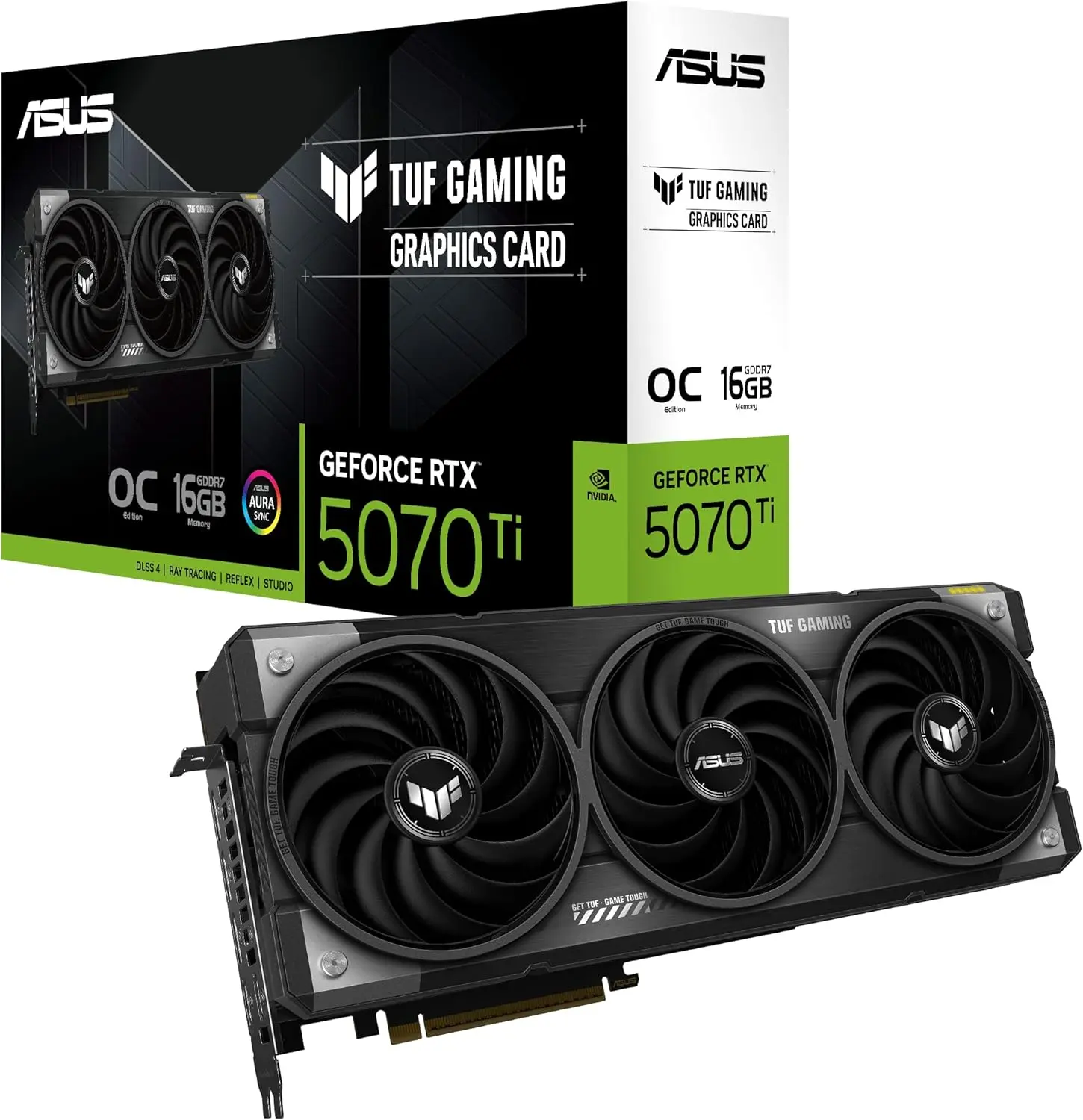
| Part of the name | NVIDIA example: RTX 5070 Ti | AMD example: RX 9070 XT |
|---|---|---|
| Brand / family | GeForce RTX | Radeon RX |
| Generation | 50 Series (Blackwell) | 9000 Series (RDNA 4) |
| Tier (higher is faster) | 70 | 70 |
| Step-up suffix | Ti | XT |
Within one generation, a higher tier number means a more powerful card, so an RTX 5080 sits above an RTX 5070 Ti, and a 5090 is the flagship. Across generations, compare carefully: a newer mid-tier card is not automatically faster than an older high-end one.
- Integrated graphics usually show up as Intel UHD, Intel Iris Xe, Intel Arc graphics or AMD Radeon Graphics without a model number. They share system memory and are not built for demanding games.
- Dedicated GPU memory is your VRAM. Current high-end cards carry 16 GB or more; the RTX 5090 has 32 GB.
- “Laptop GPU” in the name means a mobile chip, which runs at lower power than the desktop card with the same number.
When the Answer Looks Wrong
Sometimes the answer to “what graphics card do I have” raises more questions than it settles. These are the issues our builders see most often:
- Only integrated graphics appear. On a desktop, the dedicated card may lack power, be poorly seated or simply be missing a driver. Check Device Manager first, then make sure the card’s power cables are fully connected.
- Microsoft Basic Display Adapter. The driver is missing. Run Windows Update, then install the latest driver from NVIDIA, AMD or Intel.
- Games run on the wrong GPU. Go to Settings > System > Display > Graphics, pick the app and set it to use the high-performance GPU.
- The name is generic. If Task Manager shows something vague, dxdiag or the vendor app usually gives the full model name.
Laptops, Prebuilts and PCs That Won’t Boot
On a laptop, the answer to “what graphics card do I have” comes from the same steps, and you will almost always see two GPUs: integrated graphics for battery life and a dedicated chip for games. Laptop graphics are generally built into the motherboard, so knowing the model mostly tells you what the system can run, not what you can swap.
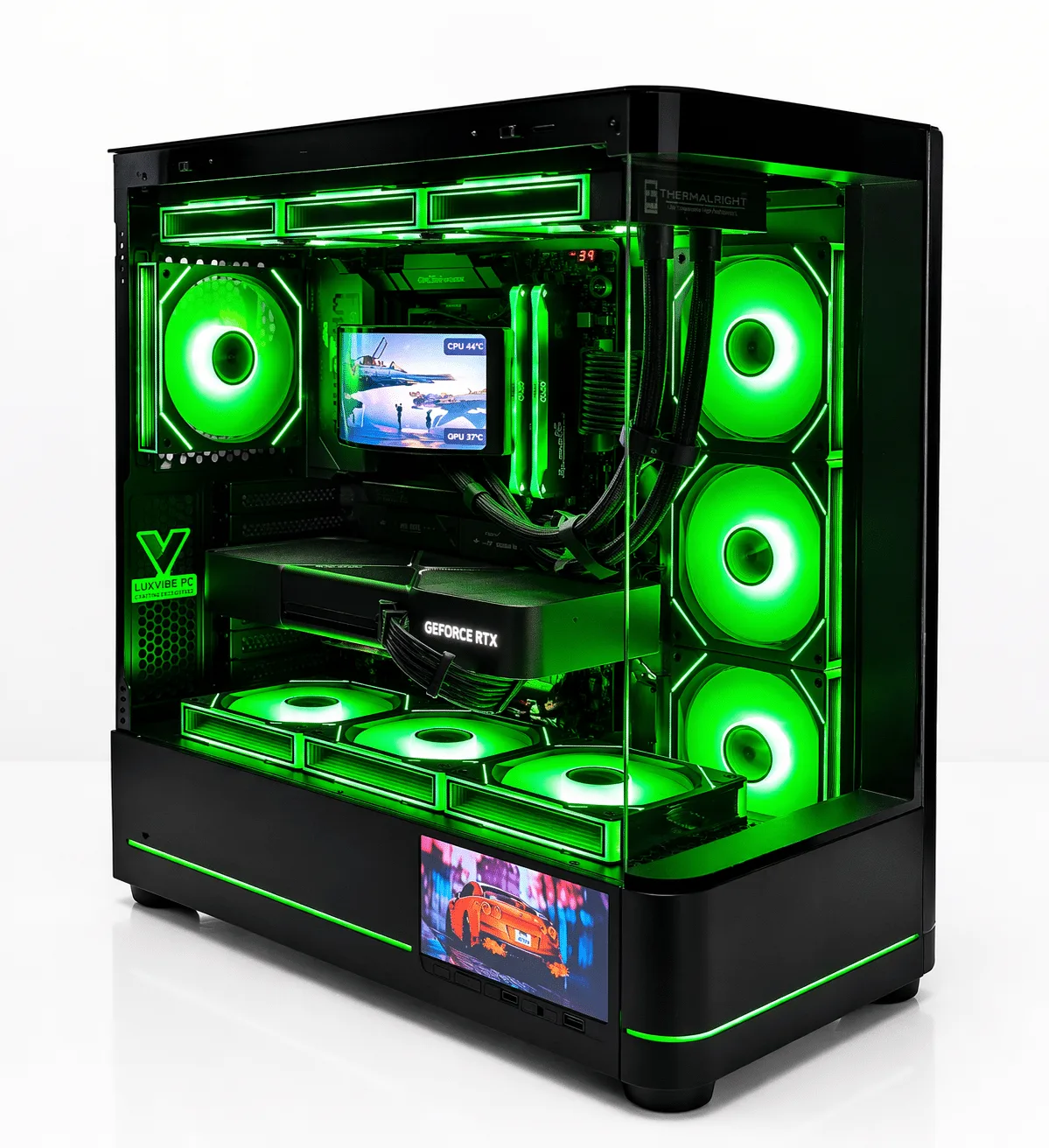
For a prebuilt desktop, check the order confirmation or spec sheet. If you own a Luxvibe PC, the model name already tells you: a LUX View 5090 has an RTX 5090, and a LUX Optic 5070ti Core has an RTX 5070 Ti.
If the PC will not boot, here is how to see what graphics card you have without Windows. Power down, unplug the PC, open the side panel and look at the card itself. Most cards have a sticker with the model name, often on the side or the back, and the brand may be printed on the shroud or backplate. The original box works too.
What to Do With the Answer
Answering “what graphics card do I have” is only useful if you act on it. Here is how our builders suggest using the answer:
- Compare it with game requirements. Match your card and VRAM against the minimum and recommended specs on the game’s store page.
- Update the driver. Use the NVIDIA App or AMD Software to install the latest driver, then follow our tips to optimize your PC for gaming.
- Plan an upgrade. If your card falls short, check your power supply and case space first. Our guide to the best graphics card for gaming compares today’s options.
Here is what the current cards need, based on official NVIDIA and AMD figures, so you can check whether your PSU is ready for an upgrade:
| Card | VRAM | Vendor PSU recommendation |
|---|---|---|
| GeForce RTX 5090 | 32 GB GDDR7 | 1,000 W |
| GeForce RTX 5080 | 16 GB GDDR7 | 850 W |
| GeForce RTX 5070 Ti | 16 GB GDDR7 | 750 W |
| Radeon RX 9070 XT | 16 GB GDDR6 | 750 W |
If you game at 1440p, our guide to the best GPU for 1440p narrows the choice further. Launch MSRPs ranged from $599 for the RX 9070 XT to $1,999 for the RTX 5090, but street prices are well above MSRP in 2026 because of the memory shortage, so check current prices on our product pages.
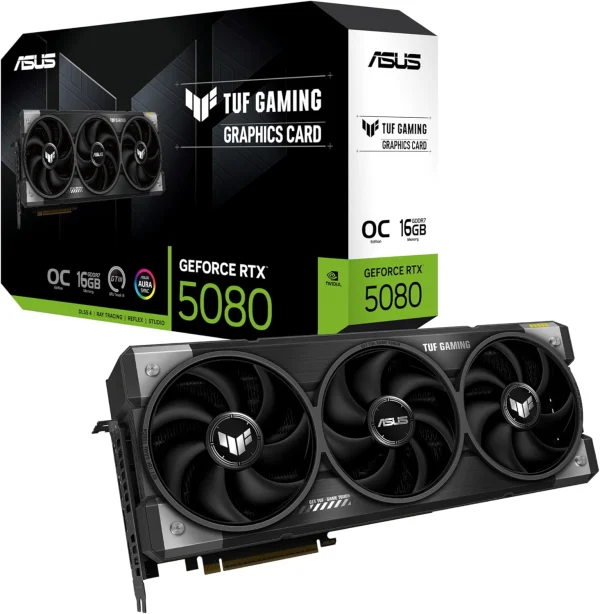
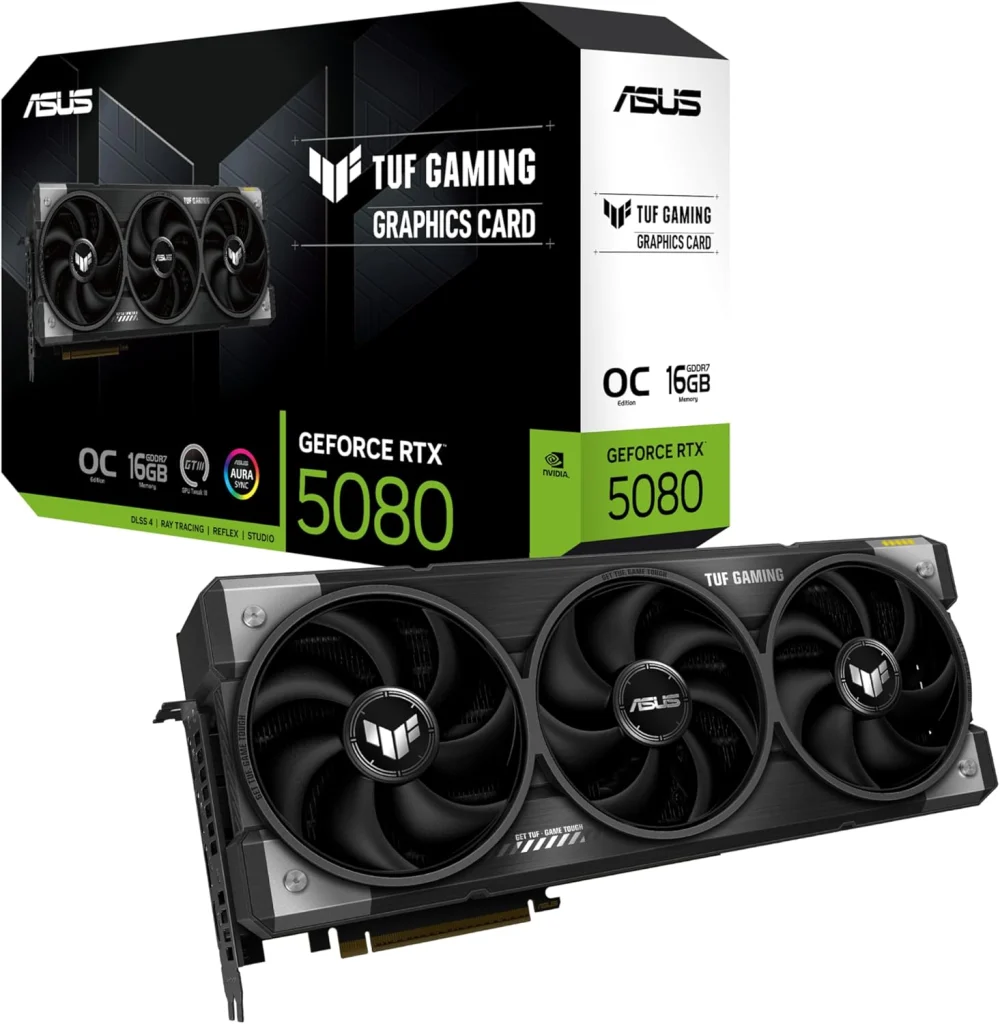
ASUS TUF Gaming RTX 5080
The ASUS TUF Gaming RTX 5080 puts NVIDIA GeForce RTX 5080 power into your desktop. It…
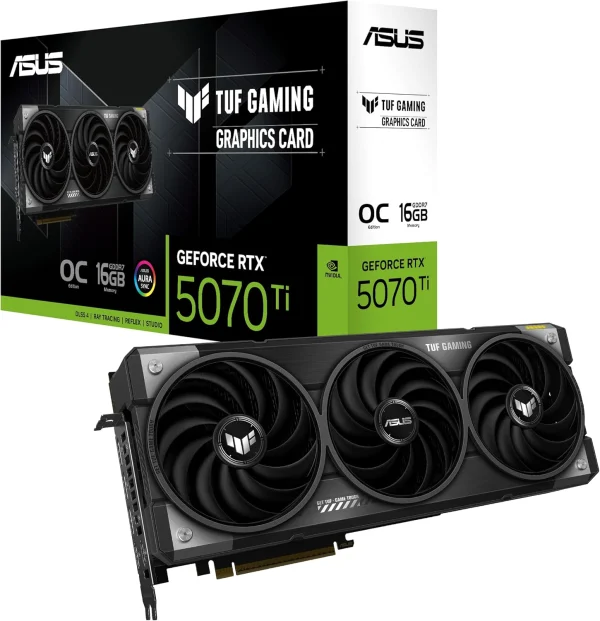
ASUS TUF Gaming GeForce RTX 5070 Ti 16GB GDDR7 OC Edition Gaming
The ASUS TUF Gaming RTX 5070 Ti 16GB GDDR7 OC puts NVIDIA GeForce RTX 5070 Ti…
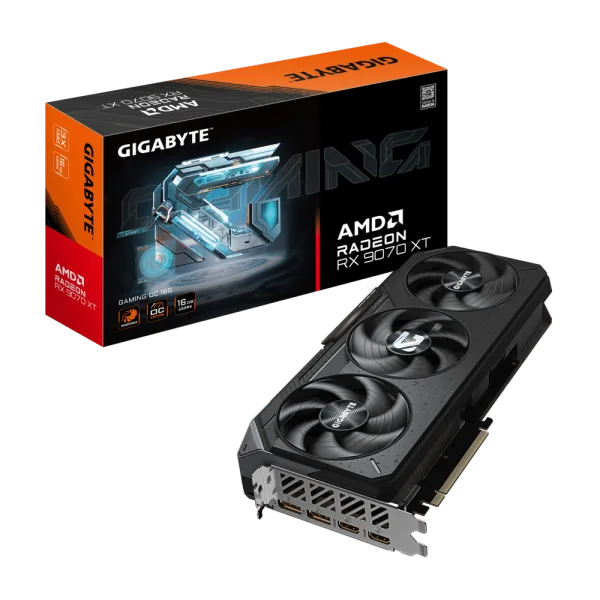
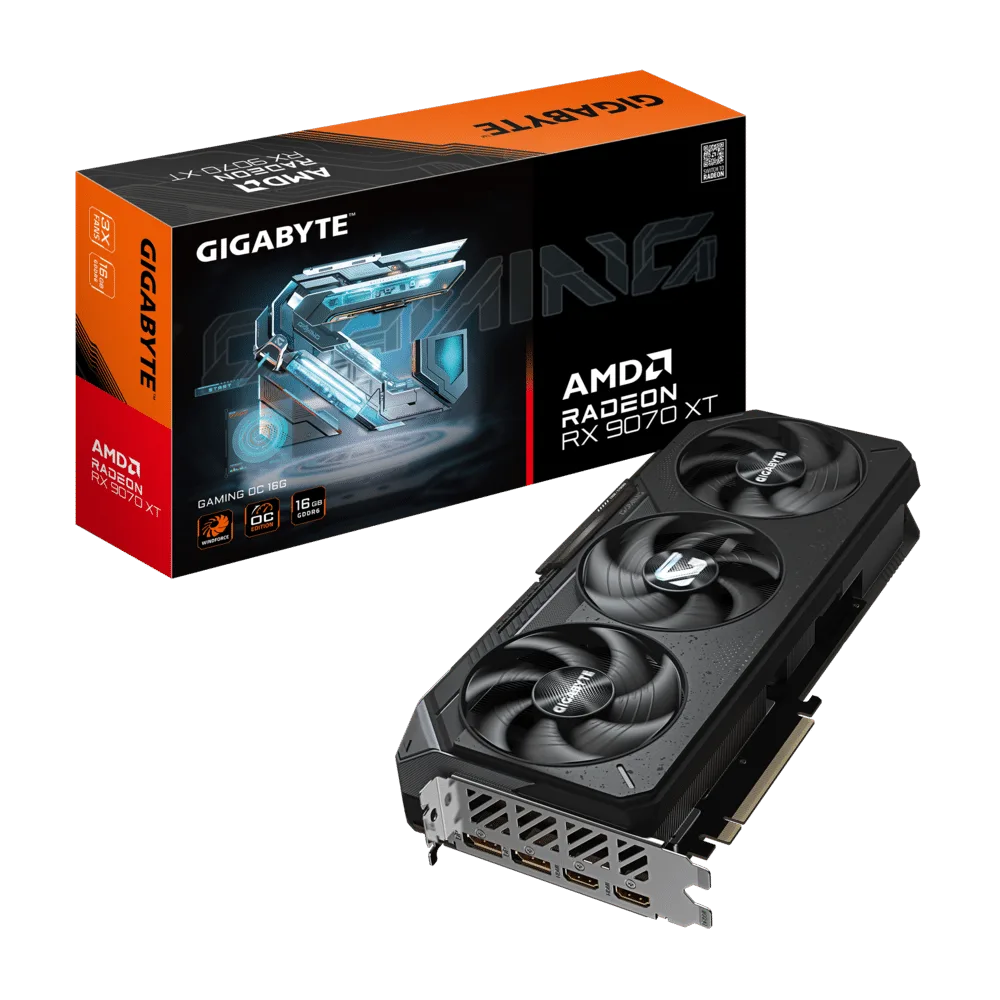
GIGABYTE RX 9070 XT Gaming OC
Upgrade to the GIGABYTE RX 9070 XT Gaming OC and get AMD Radeon RX 9070 XT…
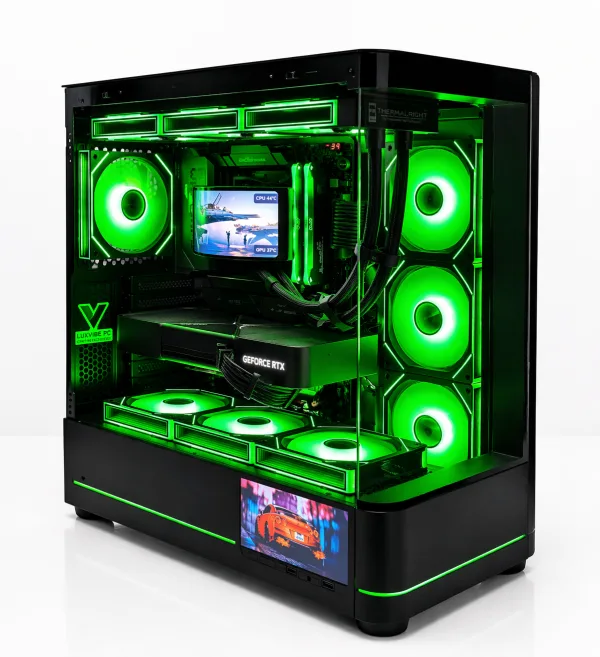
LUX Optic 5070ti Core
- GPURTX 5070 Ti
- CPURyzen 7 9800X3D
- RAM32GB DDR5
- SSD2TB NVMe
What Graphics Card Do I Have? FAQ
How to check graphics card details on Windows 11?
Press Ctrl + Shift + Esc, open Performance and click GPU. The card’s name appears top right, with VRAM and driver version below. Device Manager, Settings > System > Display > Advanced display and dxdiag show the same information in different ways.
Why does my PC show two graphics cards?
Most PCs with Intel or AMD processors have integrated graphics built into the CPU. If you also have a dedicated card, Windows lists both. That is normal; just make sure your monitor is plugged into the dedicated card.
What does Microsoft Basic Display Adapter mean?
It means Windows is using a generic display driver because the manufacturer’s driver is not installed. Microsoft recommends running Windows Update first, then downloading the driver from the manufacturer’s website.
How to see what graphics card you have without turning on the PC?
Unplug the PC, open the side panel and look for the model sticker on the card. You can also check the original box, the receipt or the order confirmation from whoever built the PC.
Is my graphics card good enough for gaming?
Compare your card and VRAM with the recommended specs for the games you want to play. If you have only integrated graphics or an older card with limited VRAM, a modern dedicated card is the biggest single upgrade you can make.
The Bottom Line
If you are asking “what graphics card do I have,” open Task Manager, click Performance, then GPU, and read the name in the corner. Use Device Manager, Advanced display or dxdiag for a second opinion, and fix any “Microsoft Basic Display Adapter” result by installing the proper driver.
Ready to upgrade? Browse current cards in our graphics card collection, or send your dxdiag report to sales@luxvibepcs.com or through our contact form. Real builders will tell you what fits your PC.